
Transfer Calls
Transfer calls from Glassix to your telephone number
Overview
After your AI agent handles a call, you can transfer the caller to your internal team, another phone number, or any SIP destination. There are two types of transfers:
- PSTN Transfers - Transfer to regular phone numbers (mobile, landline, etc.)
- SIP Transfers - Transfer to SIP addresses (internal PBX extensions, SIP endpoints, etc.)
Transfers to PSTN Phone Numbers
Transfer calls to any real phone number through your telephony provider.
Prerequisites
- At least one phone number configured with credential-based authentication
- The number must be verified and active with your provider
- Your provider must allow outbound/termination calling on the trunk
- Caller ID requirement: You must specify one of your registered phone numbers as the caller ID
How PSTN Transfers Work
- A user calls your Glassix number (e.g., +1-555-0100)
- Glassix AI agent handles the call
- Based on your voice flow logic, our AI Agent decides to transfer
- Glassix sends a SIP INVITE to your provider to dial the destination number
- You must specify which registered number to use as caller ID (e.g., +1-555-0100 or +1-555-0200)
- Your provider validates the caller ID is one of your authorized numbers
- The provider completes the call to the destination
- Both parties are connected
Configuring PSTN Transfers in Voice Flows
-
Navigate to Settings → Chatbot and AI → Chatbot Flows Editor → Your Flow.
-
Add an AI Agent Card.
-
Add a Transfer to External Voice Agent action:
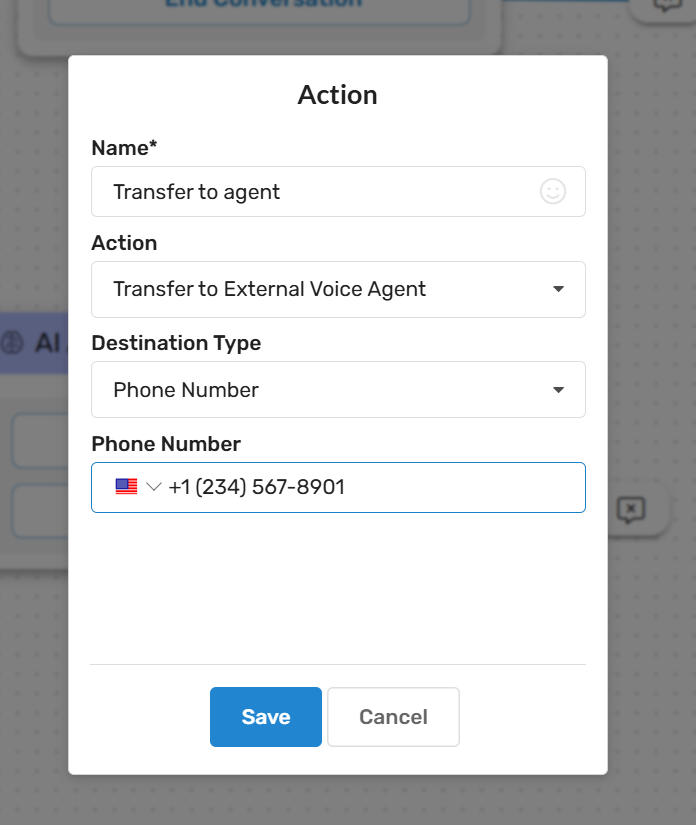
-
Configure:
- Transfer Type: Phone Number (PSTN)
- Destination Number:
+15551234567(E.164 format recommended) - Caller ID: Select from your registered numbers (required)
-
Add fallback actions if transfer fails
Important Notes for PSTN Transfers
- Caller ID is mandatory: You cannot transfer without specifying a valid, registered caller ID
- Use E.164 format: Always use international format (e.g., +15551234567)
- Verify number ownership: The caller ID must be a number you own and have configured in Glassix.
- Provider restrictions: Some providers require explicit authorization for caller ID numbers
- Costs apply: PSTN transfers incur per-minute charges from your provider
Transfer to SIP Addresses
Transfer calls directly to SIP endpoints (PBX extensions, conference bridges, voicemail systems, etc.).
There are two types of SIP transfers, depending on where the call should go:
- Transfer to a Third-Party PBX: Send the caller to an outside SIP system that isn't connected to the original call, such as a partner's PBX or an outsourced contact center.
- Transfer Back to the Originating PBX: Return the caller to the PBX that sent the call to Glassix, for example to a human agent's extension or a queue.
Prerequisites
- A SIP endpoint or PBX that can receive calls
- Glassix IP addresses whitelisted on your SIP server (see IP Whitelisting for SIP Transfers)
- Your SIP server must be reachable from the internet (or use VPN/private connection)
- Optionally: SIP authentication credentials if your server requires them
How SIP Transfers Work
- A user calls your Glassix number
- Glassix AI agent handles the call
- Based on your voice flow, Glassix transfers to a SIP address
- Glassix sends a SIP INVITE directly to your SIP URI (e.g.,
sip:[email protected]) - Your SIP server validates the source IP (must be whitelisted)
- Your SIP server routes the call to the destination extension/endpoint
- Both parties are connected
Transfer to a Third-Party PBX (INVITE)
Use this option to send the caller to a SIP system that has nothing to do with the original call, such as a partner's PBX, an outsourced contact center, or another office's phone system. Glassix places a new call to the destination by sending a SIP INVITE directly to the SIP URI you provide.
Before you start, make sure the third-party PBX:
- Is reachable from the internet (or through a VPN/private connection)
- Has the Glassix IP addresses whitelisted (see IP Whitelisting for SIP Transfers)
- Accepts inbound calls from Glassix and routes them to the destination extension
To configure the transfer:
-
Navigate to Settings → Chatbot and AI → Chatbot Flows Editor → Your Flow.
-
Add an AI Agent Card.
-
Add a Transfer to External Voice Agent action:
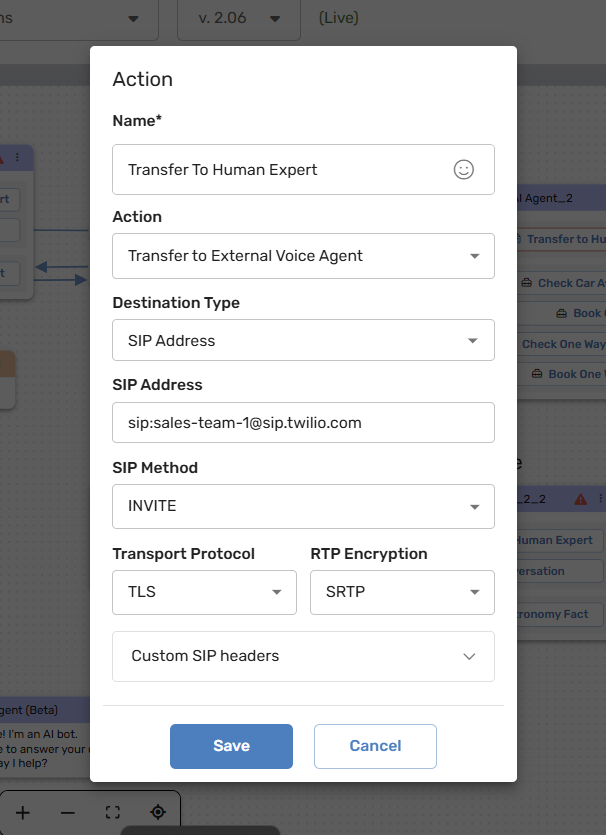
-
Configure:
- Transfer Type: SIP Address
- Destination SIP URI: The full address of the destination on the third-party system, for example
sip:[email protected]orsip:[email protected] - Select INVITE as the SIP method.
-
Add fallback actions in case the transfer fails.
Transfer Back to the Originating PBX (REFER)
Use this option when the call reached Glassix from your own PBX through a Glassix SIP address, and you want to hand the caller back to that same PBX after the AI agent is done. For example, you can send the caller to a human agent's extension, a ring group, or a queue.
Before you start, make sure that:
- Your PBX is already connected to Glassix with a SIP address (see Connect a SIP Address)
- The Glassix IP addresses are whitelisted on your PBX so it accepts calls coming back from Glassix (see IP Whitelisting for SIP Transfers)
- Your PBX has an inbound route that accepts calls from Glassix and sends them to the right extension, ring group, or queue
To configure the transfer:
-
Navigate to Settings → Chatbot and AI → Chatbot Flows Editor → Your Flow.
-
Add an AI Agent Card.
-
Add a Transfer to External Voice Agent action:
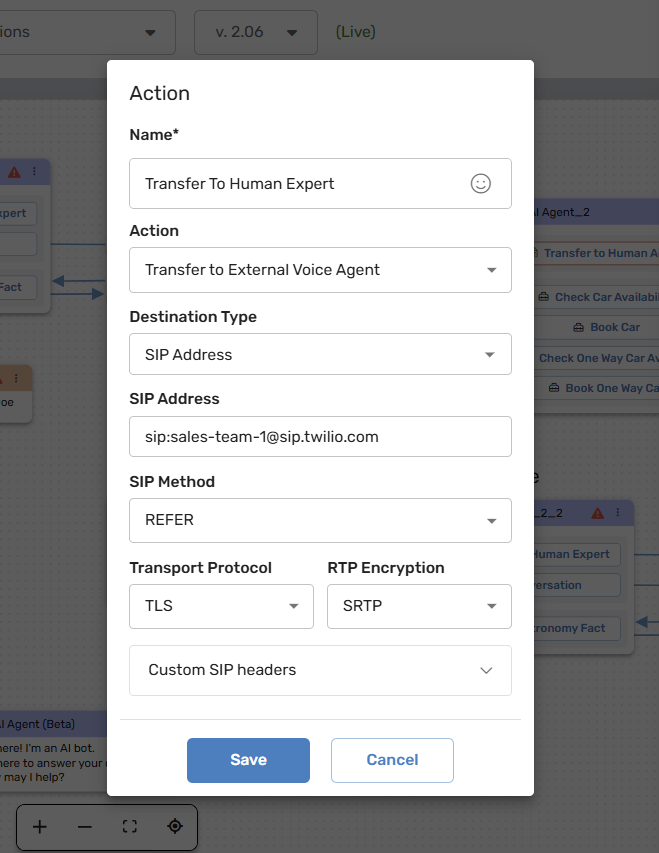
-
Configure:
- Transfer Type: SIP Address
- Destination SIP URI: An extension, ring group, or queue on your own PBX, for example
sip:[email protected] - Select REFER as the SIP method.
-
Add fallback actions in case the transfer fails.
Tip:To give your agents context when the call arrives back on your PBX (for screen pops or routing), attach custom SIP headers to the transfer.
Important Notes for SIP Transfers
- IP whitelisting is mandatory: Your SIP server will reject calls from non-whitelisted IPs
- Direct connection: Calls go directly to your SIP infrastructure, not through your provider
- No provider costs: SIP-to-SIP transfers don't incur provider charges
- Firewall configuration: Ensure SIP (5060/5061) and RTP (16384-32768 UDP) ports are accessible
- Domain/IP: You can use domain names or IP addresses in SIP URIs
Provider Requirements for PSTN Transfers
Twilio:
- Enable Termination on your SIP trunk
- Add authorized caller ID numbers in trunk settings
- Ensure sufficient account balance
Vonage:
- Link phone numbers to your application
- Enable outbound permissions
- Configure caller ID policies
Other Providers:
- Verify trunk has bidirectional calling enabled
- Confirm caller ID validation rules
- Check for number porting or ownership verification requirements
Updated 8 days ago