
Move Tickets Between Departments
Learn how to transfer and restrict tickets across different departments
Important:If a bot flow attempts to move a ticket between departments and the channel transfer is not permitted, the flow will throw an error and shut down. This is particularly disruptive in bot-only departments where no agents are actively monitoring.
Overview
The Move Between Departments feature controls which channels can transfer tickets between departments. This setting applies to both agent-initiated transfers and automated bot flows. This setting allows you to prevent departments from transferring tickets to one another, ensuring sensitive information stays within the appropriate team and maintaining data privacy.
Getting There
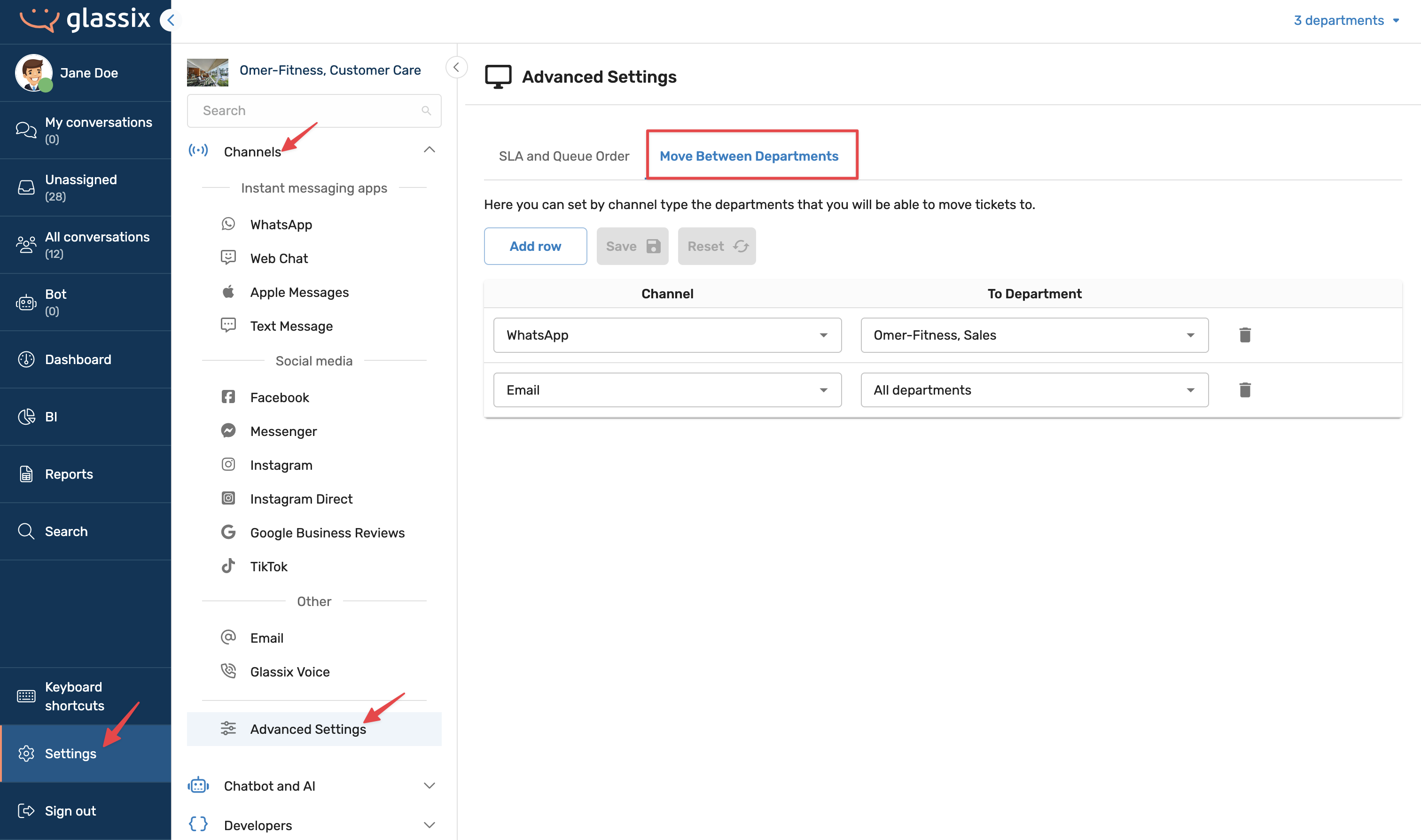
To access the Move Between Departments settings click here or:
- Go to Settings.
Click on the symbol in the agent dashboard.
- Click Channels → Advanced Settings → Move Between Departments
Why Restrict Transfers?
Restricting which channels can transfer between departments serves two main purposes:
1. Data Privacy
Sensitive information shared within a ticket should not be accessible to departments that don't need it. Take a bank as an example. A customer's financial details should only be visible to their personal banker, not to an external technical support team. By enabling one-directional transfers, you can allow technical support to escalate tickets to the banker while preventing the banker from sending those tickets back to the support team. This ensures sensitive information never reaches unauthorized hands.
2. Channel Appropriateness
Some departments only handle specific communication channels. Finance teams, for instance, often prefer to work exclusively via email and should not receive transfers via WhatsApp or SMS.
How to Configure Channel Transfer Permissions
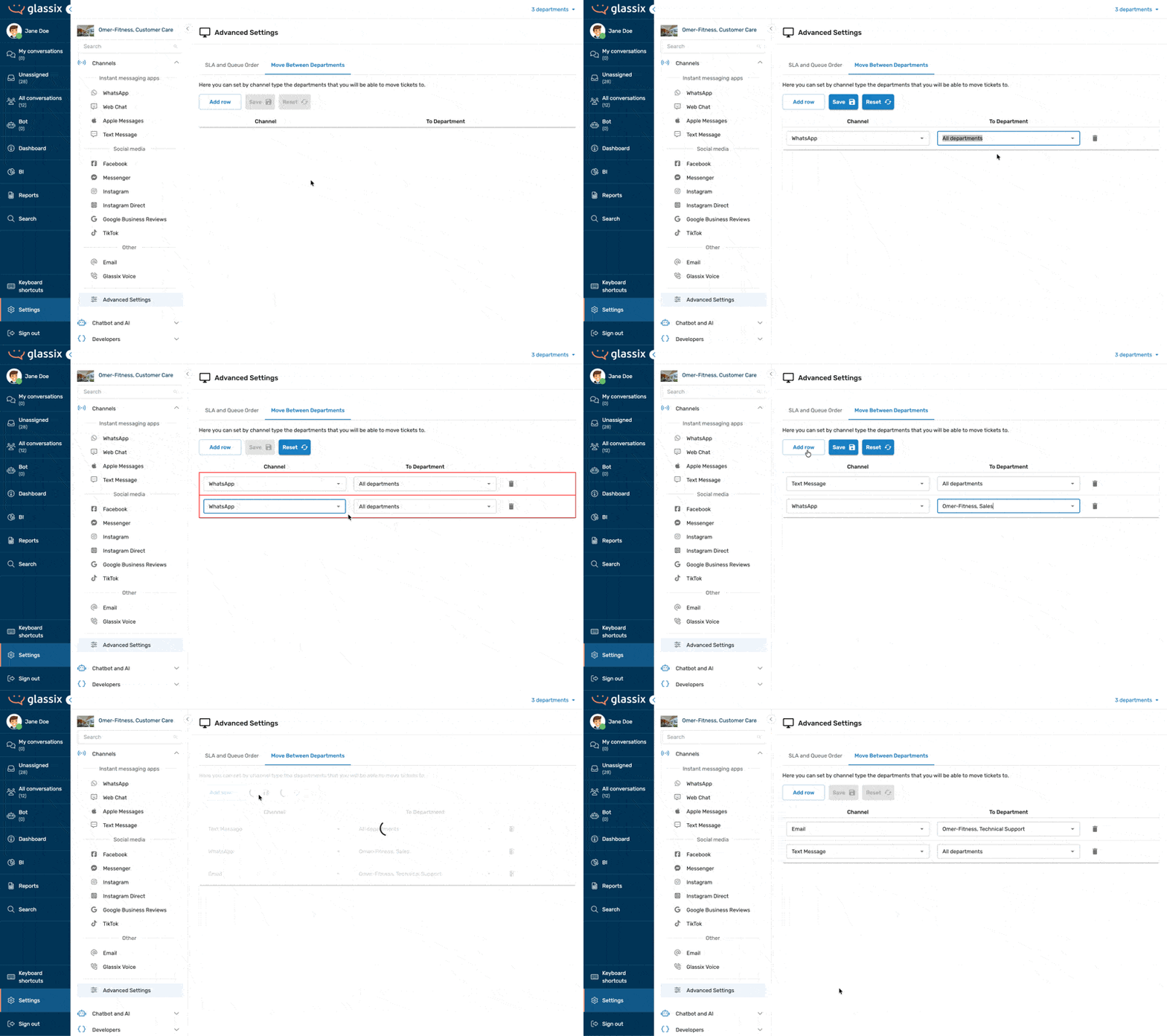
In Move Between Departs setting, you can define which channels are allowed to transfer tickets to which departments.
- Default (no rows configured): No transfers are permitted.
- First row added: Defaults to all channels transferring to all departments suitable for most simple setups.
- Custom rows: Allow you to specify, for example, that only email tickets can transfer to the Finance department, while WhatsApp tickets can only transfer to Sales.
Common Configuration Examples
All channels to all departments
The simplest setup.
WhatsApp to Sales only; Email to all departments
A good fit for organizations where specialist or finance teams prefer email communication and do not want to receive instant messaging tickets.
Bot-only departments
Departments that run only automated flows should generally allow all channels to transfer out freely.
Specialist Departments (Finance, Legal, etc.)
Specialist departments should restrict or block outgoing transfers to protect sensitive data from flowing back out to unauthorized teams.
How Transfers Work
When a ticket is transferred from Department A to Department B:
- The ticket in Department A is closed and a copy is created in Department B.
- The closed ticket in Department A cannot be reopened, edited, or modified in any way.
- If the ticket is later transferred back from B to A, the copy in B is closed, and a new copy is created in A.
- Transfer rules (e.g., whether WhatsApp tickets can be transferred from Department A to B) are governed by the Department A's settings. If Department A doesn't allow transfers to Department B, the option to transfer to Department B will not show up in Department A.
- Ticket rules (e.g. working hours, agent availability, etc.) are governed by the Department B's settings. If Department B is closed or not accepting new tickets, the transfer from Department A will be rejected. The ticket will remain in Department A, it will never appear in Department B.
Transfers via API
You can also transfer tickets between departments programmatically using the Set Department API endpoint. Note that tickets involving a department as both a participant at the origin and an agent at the destination cannot be transferred to prevent conflicts; the system automatically blocks these transfers.
For full details, refer to the Set Department API documentation.
A Note on Agent to Bot Transfers
Info:Bot transfers will follow the same rules as normal transfers. If you don't allow transfers between departments for agents, bots will also not be able to transfer conversations between departments.
Under Chatbot Flow Mapping, you can also configure In-Conversation Assistants, which allow for transfers to a specific bot that may reside in a different department.
While this is a way to transfer tickets between departments, this is a separate feature from standard department transfers and is intended for advanced use cases only.
If you are looking to transfer a conversation to a bot flow, that configuration is managed in the Chatbot Flow Mapping settings.
Updated 7 months ago