
Surveys
Learn how to build and setup surveys for customers to collect feedback
Customer satisfaction surveys let you collect feedback after support interactions. You can run them across almost every channel, with a few exceptions. This article walks through how to build surveys, configure, and generate survey links manually via the API.
Building a Survey
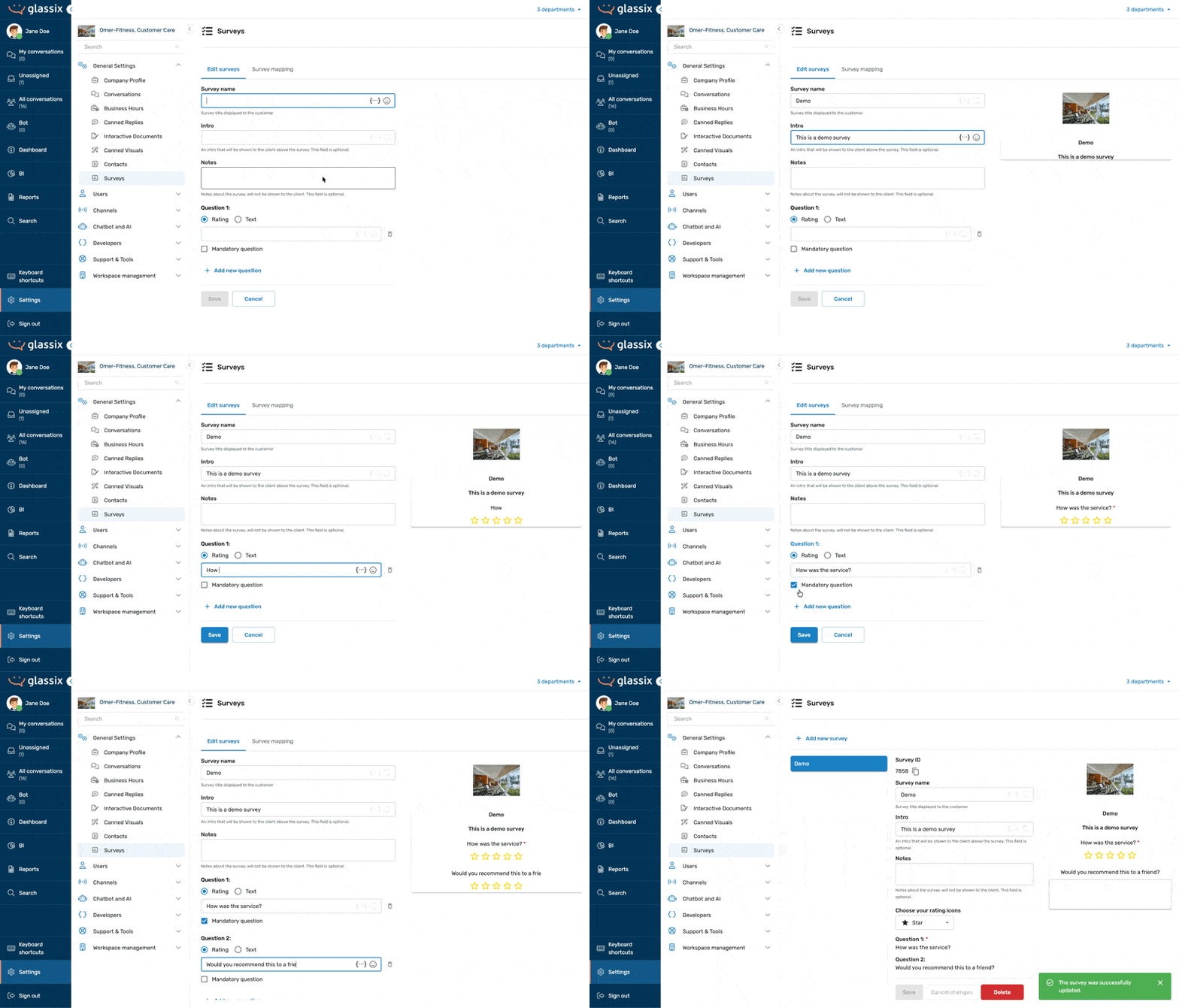
The survey builder uses a WYSIWYG editor, so you can see exactly how your survey will look to customers as you build it.
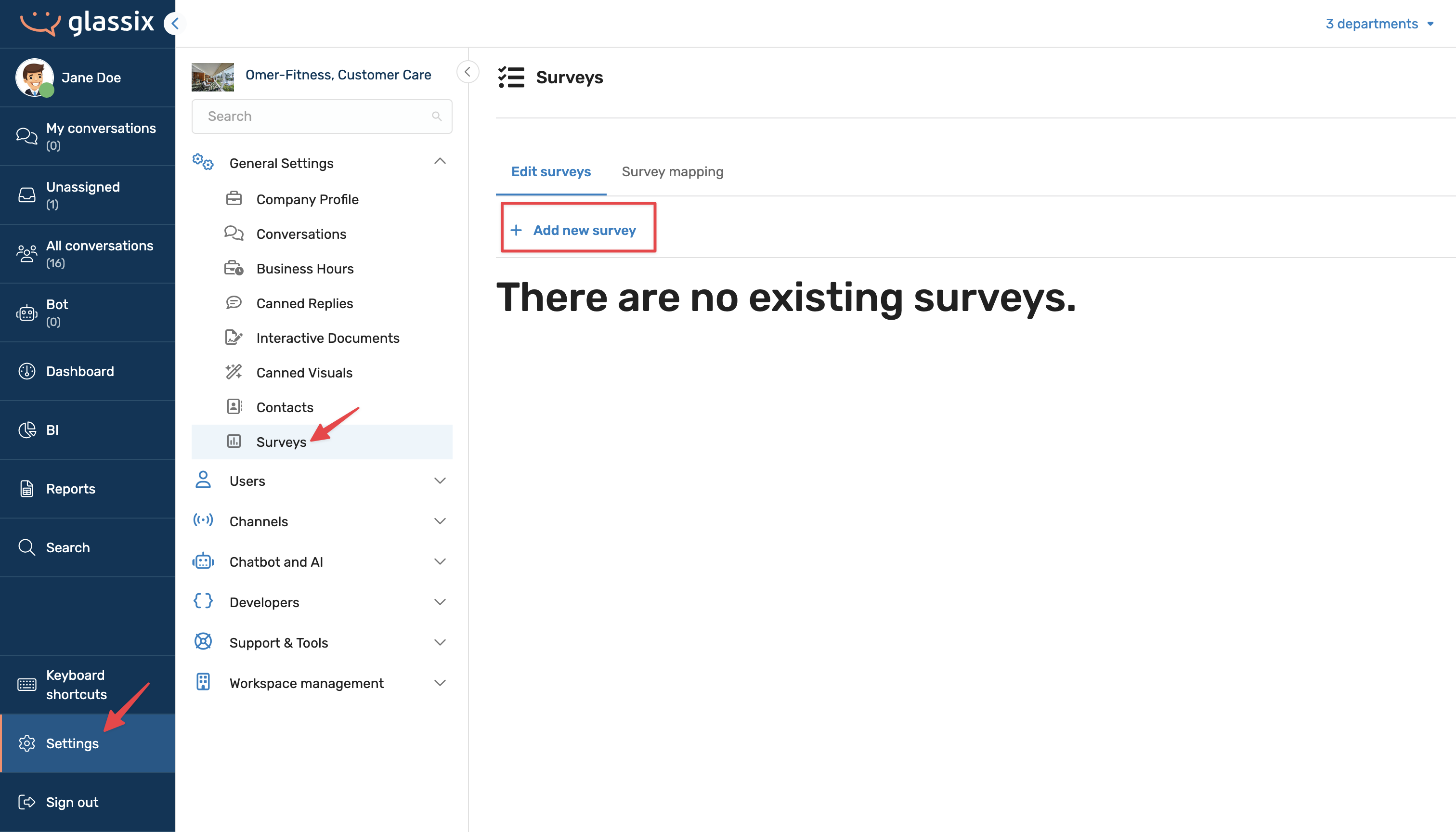
To add a new survey, click here or:
- Go to Settings.
Click on the symbol in the agent dashboard -> Surveys and click on +Add a new survey.
Next, you add the survey details.
Rating Types
Each survey question uses one of three rating display types:
- Numeric- a numerical scale
- Emoji - emoji icons
- Star - a star rating
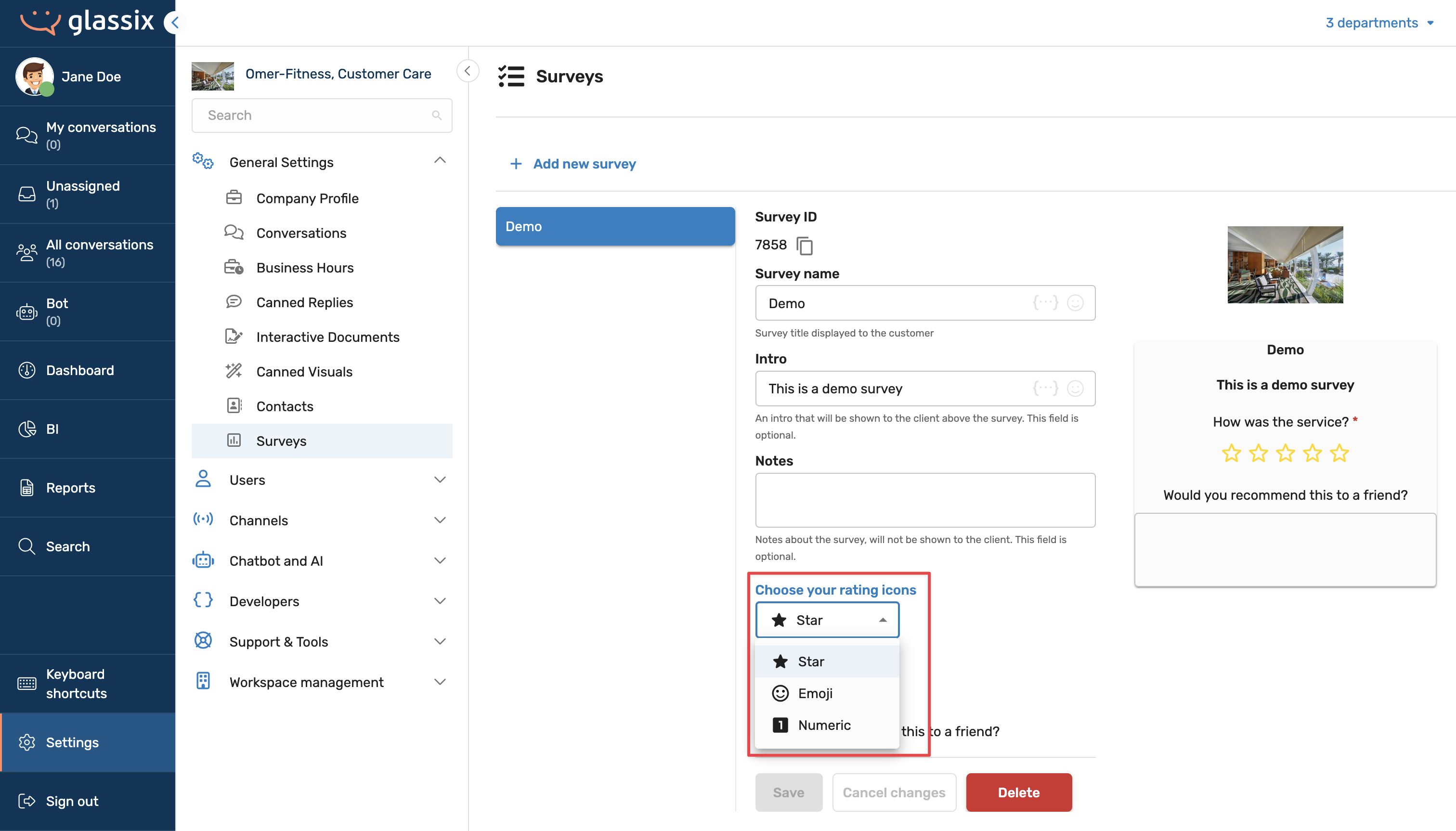
All three are recorded identically in the API. The choice is purely visual and does not affect how responses are stored. Pick whichever feels right for your brand.
Questions
You can add up to 6 questions per survey. Each question can be set as mandatory or optional. There's no limit on the number of surveys you can create.
Company Logo
The logo displayed on your survey is pulled from your company profile settings.
Notes
The Notes field is an API-only field. It doesn't appear to customers and is intended for internal reference or programmatic use.
Deleting Surveys
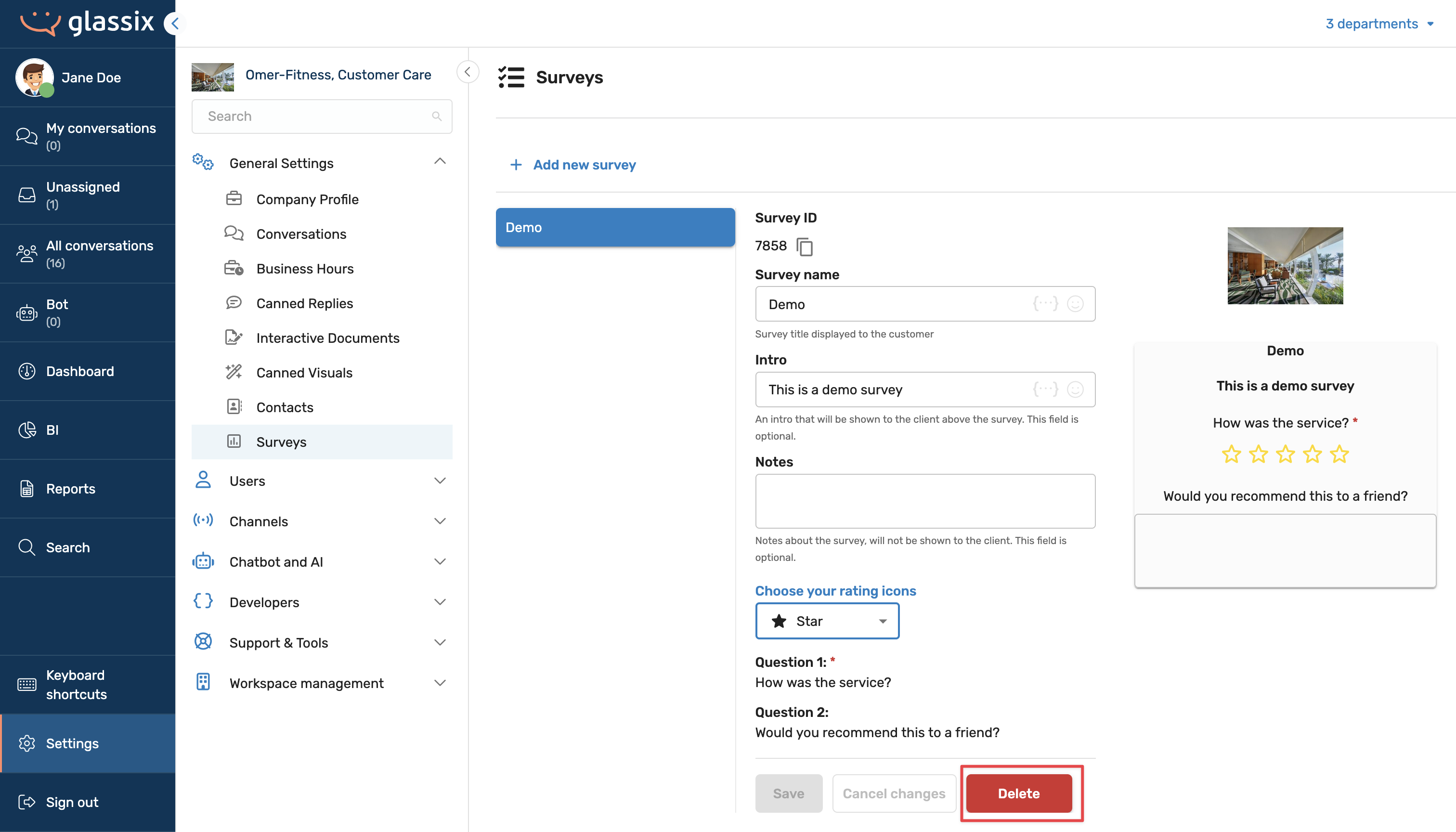
Important:Deleting a survey permanently removes its data from your statistics and reports. Survey-specific reports will not run if the referenced survey no longer exists. We strongly recommend exporting all survey data before deleting a survey or avoiding deletion altogether.
To delete a survey, click on Delete.
Survey Mappings
Survey mappings are the rules that control when and how surveys are automatically sent after a ticket closes. This is where most of the configuration happens.
To add a new survey mapping, click on Add a new survey mapping under the Survey mapping tab.
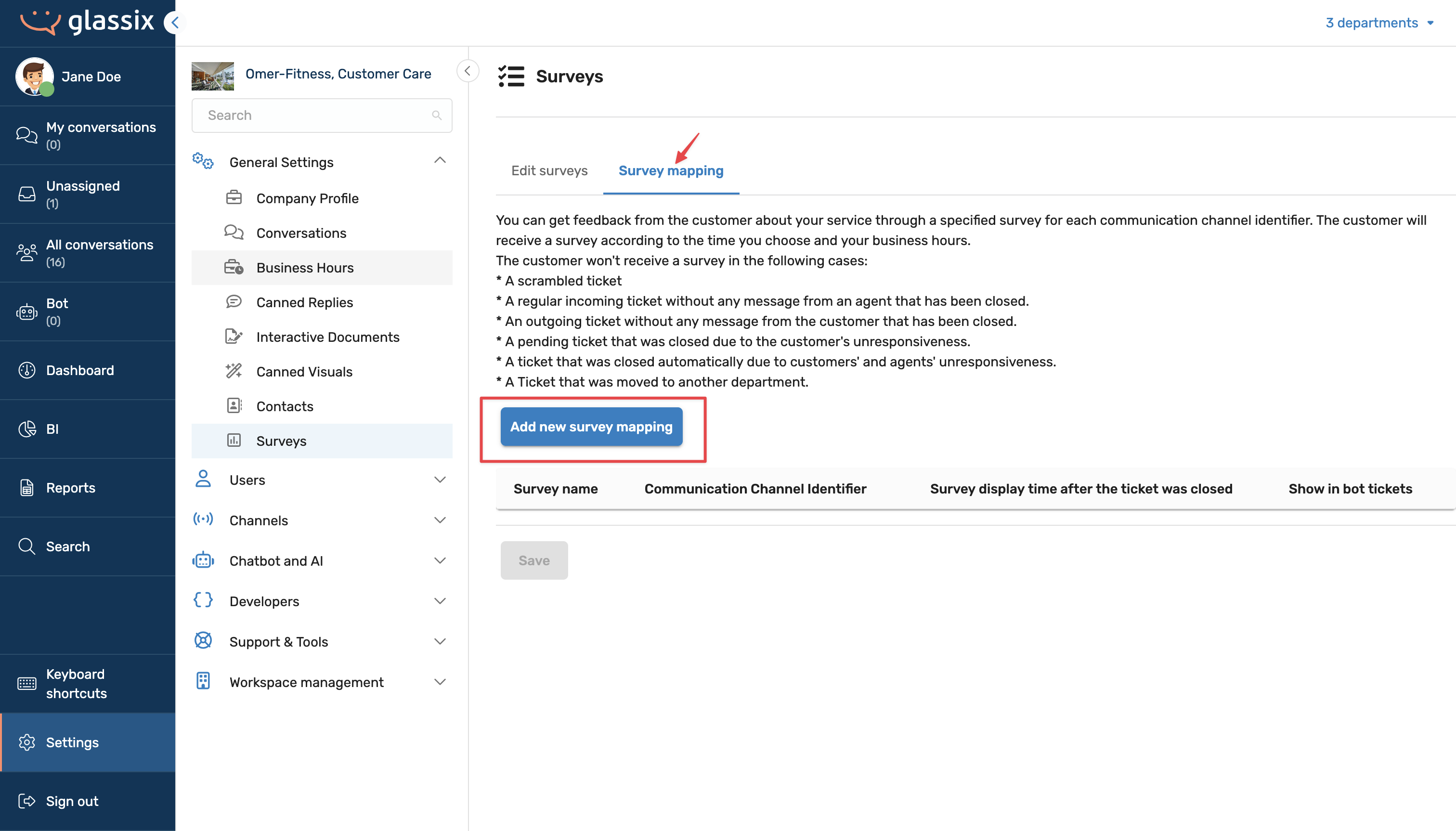
Next, add the survey mapping details.
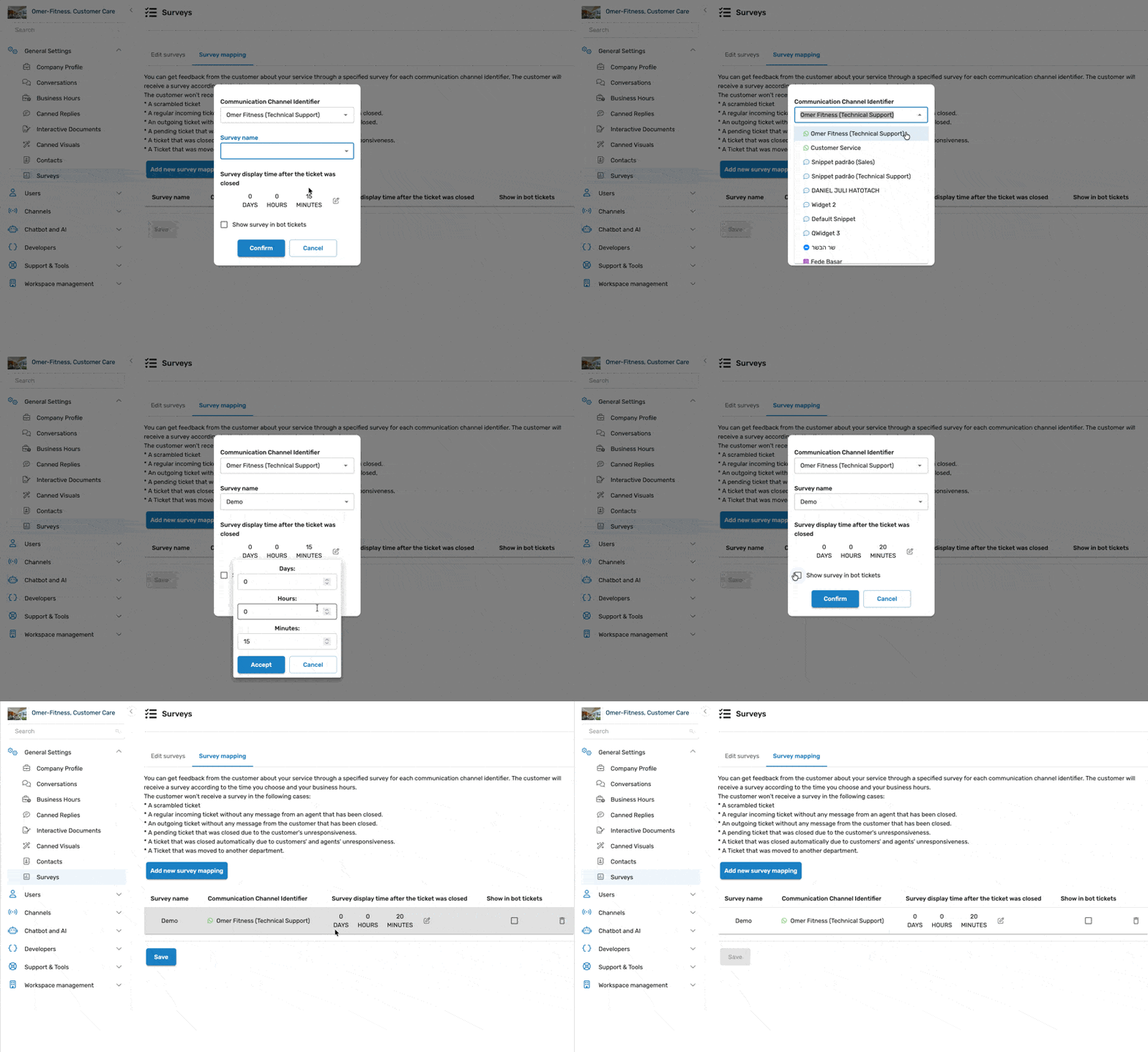
Rules for Sending a Survey
Tip:A survey will only be sent automatically when all of the following conditions are met:
- The ticket's channel has a survey mapping configured.
- The ticket's language matches the survey mapping language.
- The ticket closed during the department's business hours.
- The ticket was not moved between departments.
- The ticket was not handled exclusively by a bot unless Show in Bot Tickets is enabled.
Language
Note:If you configure a mapping for English but a ticket was handled in Spanish, no survey will be sent. Make sure you have mappings configured for every language your team supports.
This behavior is intentional; you wouldn't want to send an English survey to a Spanish-speaking customer.
Business Hours
Info:If a ticket closes outside of those hours, the survey is held and sent as soon as the department opens even if the mapping specifies a short delay, such as 5 minutes.
This exists because departments can be configured to disable communication methods outside of business hours. If a customer replies to a survey and gets a "this department is closed" message in return, that's a poor experience.
Department Transfers
If a ticket is moved between departments, no survey is sent on the original closed ticket. A survey is sent on the copy created in the new department, because that copy has never been transferred.
Scrambled Tickets
A scrambled ticket is one in which all personal information has been removed for privacy purposes, leaving only metadata. Surveys can still be configured for scrambled tickets based on your mapping rules.
Bot Tickets
Show in Bot Tickets controls whether a survey is sent when a ticket was handled entirely by a bot, meaning no human agent ever participated. This is disabled by default. Enable feedback collection for automated interactions.
Channel Availability
Surveys are available on most channels. The following are not supported:
- Voice/phone calling (the native in-app voice channel)
- Facebook Feed and Instagram Posts (public wall/feed comments)
- Google Business Reviews
- TikTok
Facebook Messenger and Instagram Direct (private messaging) do support surveys; only the public feed and comment channels are excluded. Since posting a satisfaction survey as a public comment on a feed isn't appropriate.
Generating Survey Links via API
In addition to automatic delivery via mappings, there's an API endpoint that lets you manually generate a survey link for a specific ticket. This is useful when you want to send a survey through a different channel than the one used for the original support conversation.
When to Use the Endpoint
Common use cases include:
- Post-chat data clearing Some platforms clear web chat history immediately after a conversation ends. Since the survey would normally be sent inside the web chat, that's no longer possible. Instead, you can generate a link and email it.
- Sending from a different email address If you want survey emails to come from a different address than your standard support communications.
- External bots or custom integrations Any scenario where you need to deliver the survey via a channel other than the one used to handle the ticket.
Important:If a channel already has an active mapping and the customer has met the sending requirements, the endpoint cannot generate an additional link. Each ticket can only receive one survey. To use the endpoint, remove the channel's mapping first.
Tracking Survey Delivery
You can confirm whether a survey was sent by checking the ticket's transaction history. When a survey is sent, a Survey Sent transaction appears in the ticket timeline alongside other events, such as ticket reopening or status changes.
Updated 8 months ago