
WhatsApp Embedded Sign-Up Guide
Add a new WhatsApp number using the embedded signup flow.
Prerequisites
Before you begin, you must contact your Glassix contact or implementation partner. We will provide you with the link needed to start this process. Connecting a WhatsApp number is not available by default because it requires billing setup on our end.
Who Can Use This Process?
- Direct customers (no implementation partner): You can use this process. Contact your Glassix contact to get started and receive your sign-up link.
- Customers with an implementation partner: Please check with your partner first to confirm your eligibility before proceeding. Eligibility depends on how your billing is configured on the back end.
Info:If you don't have a phone number to connect and would like Glassix to provide one, please reach out to your Glassix contact or implementation partner to schedule a setup session.
Before You Start: Key Concepts
Meta's terminology can be confusing. Here's a quick overview of how the accounts are structured:
Meta Business Account (Business Portfolio)
Your top-level company account, managed at business.facebook.com. Think of it like an umbrella account it contains all your Meta-related assets, such as ads, Instagram, and WhatsApp. One portfolio typically represents one company.
WhatsApp Business Account (WABA)
A sub-account that lives inside your Meta Business Account, specifically used for sending WhatsApp messages as a business. You can have multiple WABAs under one Business Portfolio (for example, one for sales and one for support). Each WABA can have up to 2 phone numbers by default, and up to 20 if you request more from Meta.
Requirements
Before beginning, make sure you have the following:
- A sign-up link from Glassix - Contact your Glassix contact or implementation partner to receive this link. Without it, you cannot access the sign-up flow.
- Facebook Admin access - You must be an admin on your Meta Business Account to complete this process. Only users with administrator permissions can create WhatsApp Business Accounts.
- Access to the phone number you want to connect - You will need to verify the number with a one-time passcode (OTP) during setup. See phone number requirements below.
Phone Number Requirements
The phone number you want to connect must meet the following criteria:
- Not already in use on WhatsApp - either on the personal app or through another WhatsApp Business API provider. If your number is currently registered with another provider, you will need to migrate it before registering it with us. See Meta's migration guide for details.
- Able to receive SMS or voice calls - the number must be reachable for OTP verification. If you are using a contact centre number with an IVR system, the IVR must be disabled or intercepted during verification.
- Not a short code or toll-free number
Note:Number already registered elsewhere? If you try to connect a number that is already registered to an existing WhatsApp account, you will receive an error. The number must be deleted from the previous account and two-factor authentication (2FA) must be disabled there before it can be registered here. If the number is with another Business Solution Provider (BSP), you will need to ask them to do this on your behalf.
Step-by-Step: The Embedded Sign-Up Flow
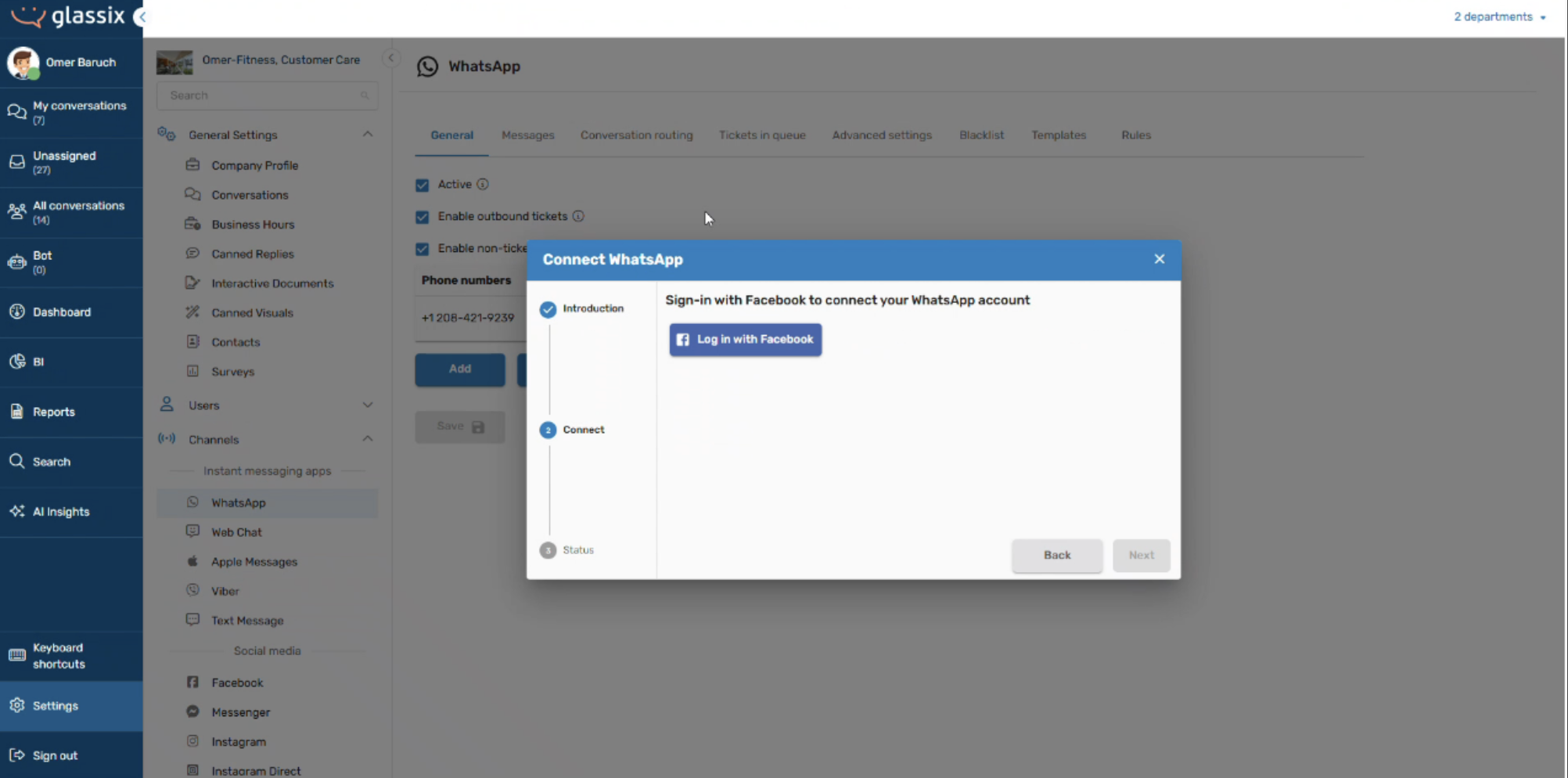
Step 1: Open the Sign-Up Link
Open the link provided by your Glassix contact, then click Log in with Facebook to begin.
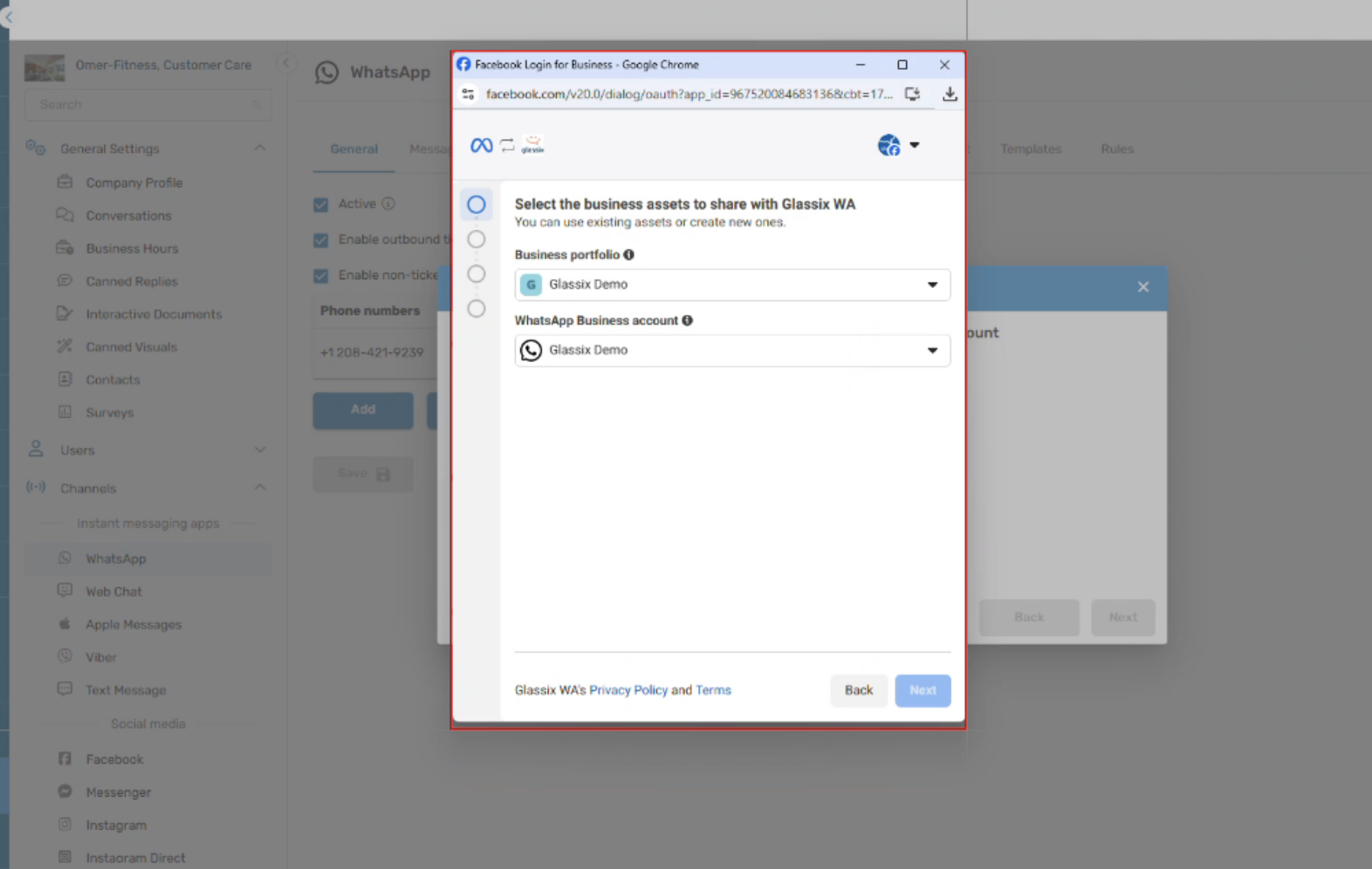
Step 2: Log In to Meta
Meta will identify your existing Facebook account. Log in with the account that has admin access to your Meta Business Portfolio.
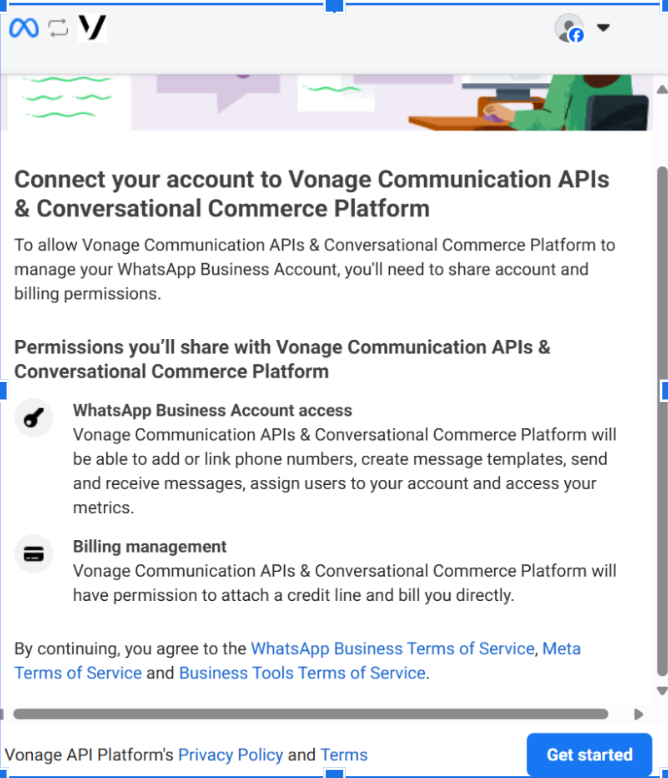
Step 3: Share Permissions
You will be asked to grant Glassix permission to manage your WhatsApp account and billing information. Click through to proceed.
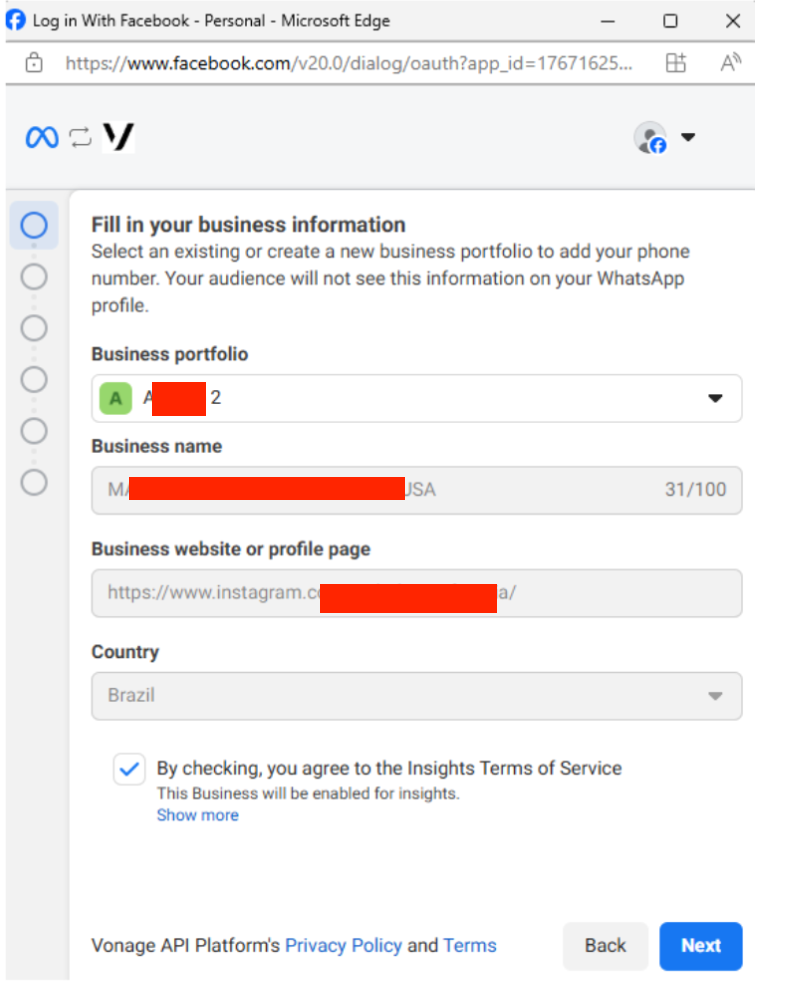
Step 4: Select or Create a Business Portfolio
Choose the Meta Business Portfolio you want to associate your new WhatsApp Business Account with.
- Selecting an existing portfolio: Your business name, website, and country will be automatically filled in from your existing portfolio information.
- Creating a new portfolio: You will need to manually enter your business name, website, and country.
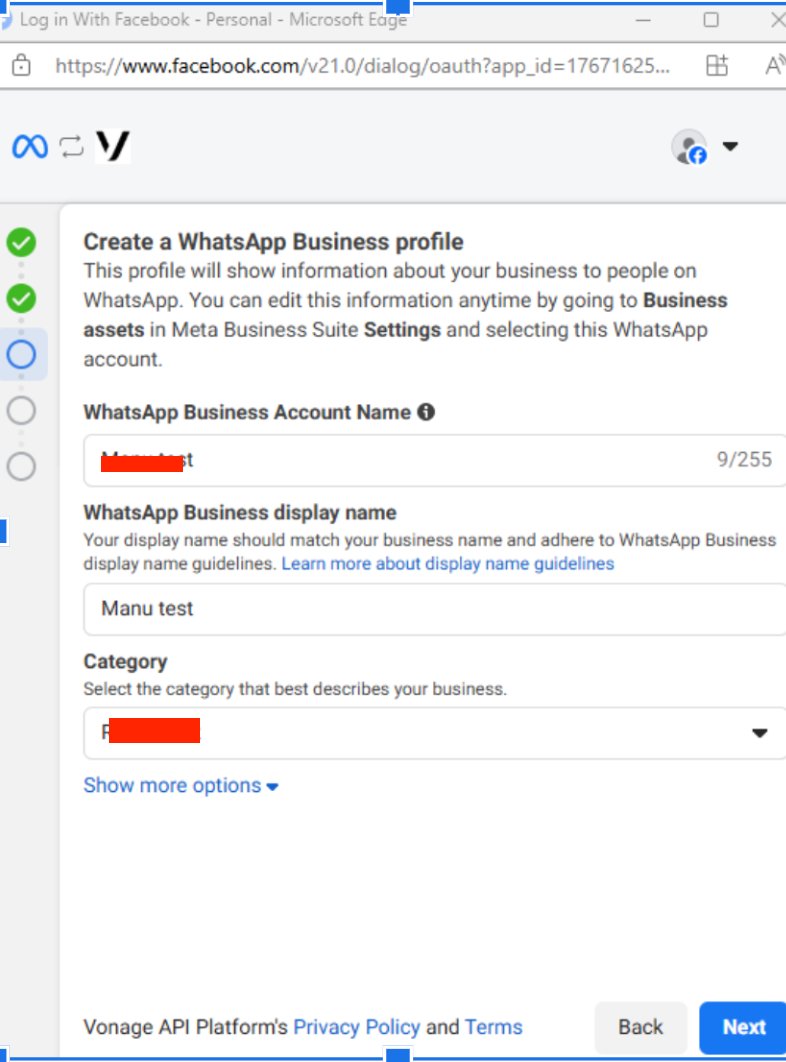
Step 5: Create a WhatsApp Business Account (WABA)
Select "Create WhatsApp for Business Account" and fill in the following:
- Display Name: Your business name as it will appear to WhatsApp users. You can edit this later.
- Business Sector / Category: If you are unsure what to select, choose Professional Services. Selecting "Other" may result in WhatsApp not approving your account. Most Glassix customers are service-based businesses, so Professional Services is typically the right fit.
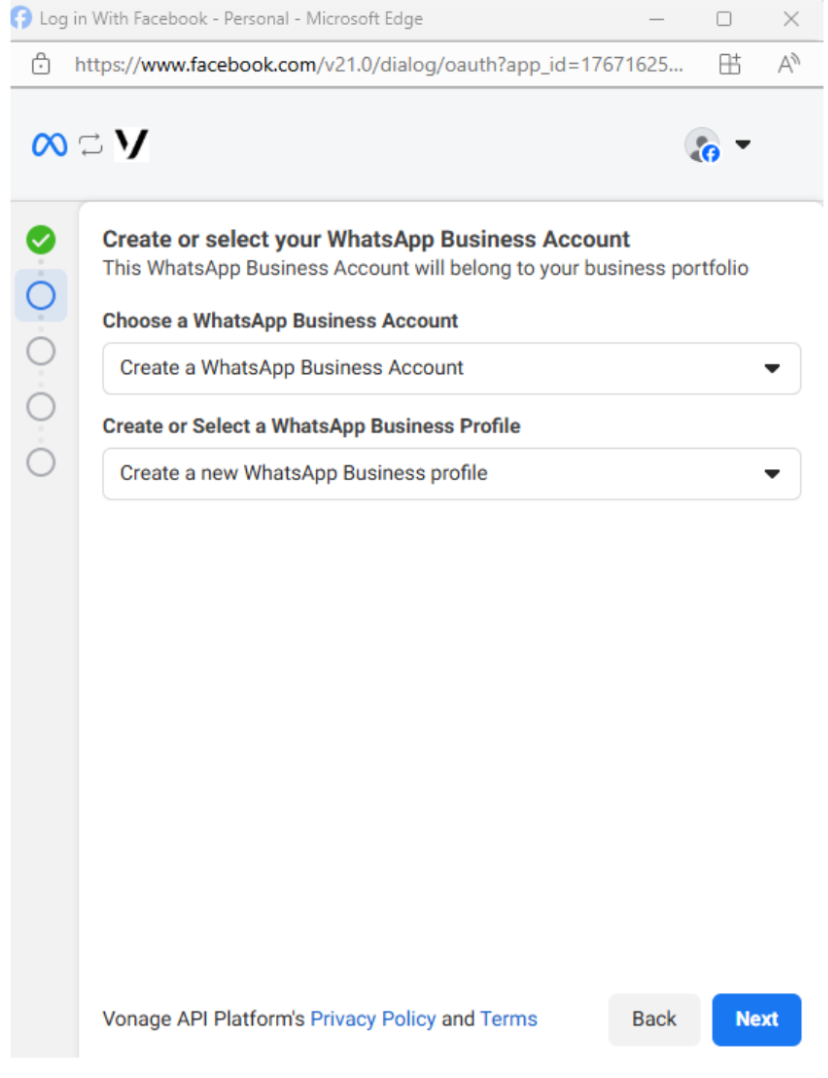
Should you create a new WABA or use an existing one?
- Create a new WABA Recommended for first-time setups. Works reliably ~99.9% of the time. Note that any message templates from a previous account will not carry over; you will need to recreate them.
- Use an existing WABA previously connected to Glassix Fine to use. Select the WABA you used with us before, and it will work correctly.
- Use an existing WABA never connected to Glassix Not recommended. It can cause unexpected errors that are difficult to diagnose and may require weeks of back-and-forth with Meta to resolve.
Info:If your Meta Business Portfolio cannot create new WhatsApp Business Accounts or connect new numbers, creating a new WABA may fail. Contact your Glassix contact if you run into this issue.
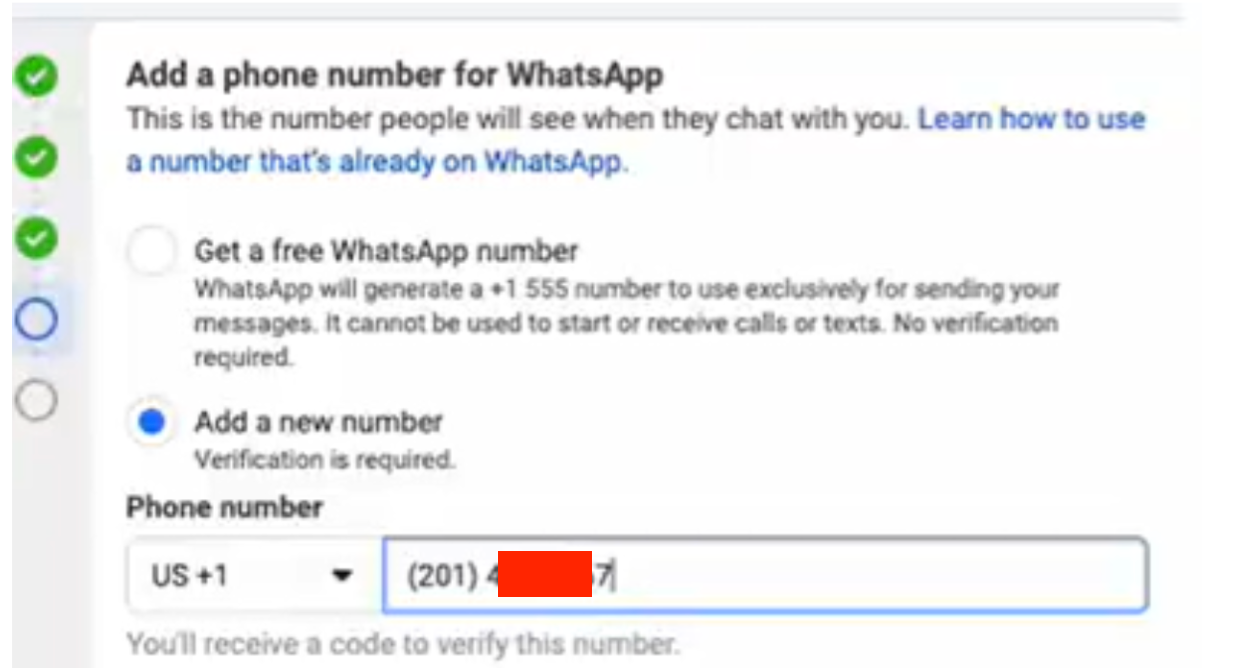
Step 6: Add Your Phone Number
Enter the phone number you want to connect to your WABA.
Info:"Add a new number" means add a number you already own it does not mean purchasing a new number from Meta.
You can use either:
- Your own existing number - a number you own and have access to. It does not need to have any prior connection to Meta or WhatsApp.
- A Glassix-provisioned number - if you'd like us to provide a number, please reach out to your Glassix contact or implementation partner before starting this process. You will not be able to complete this process on your own, even if you already have a number from us.
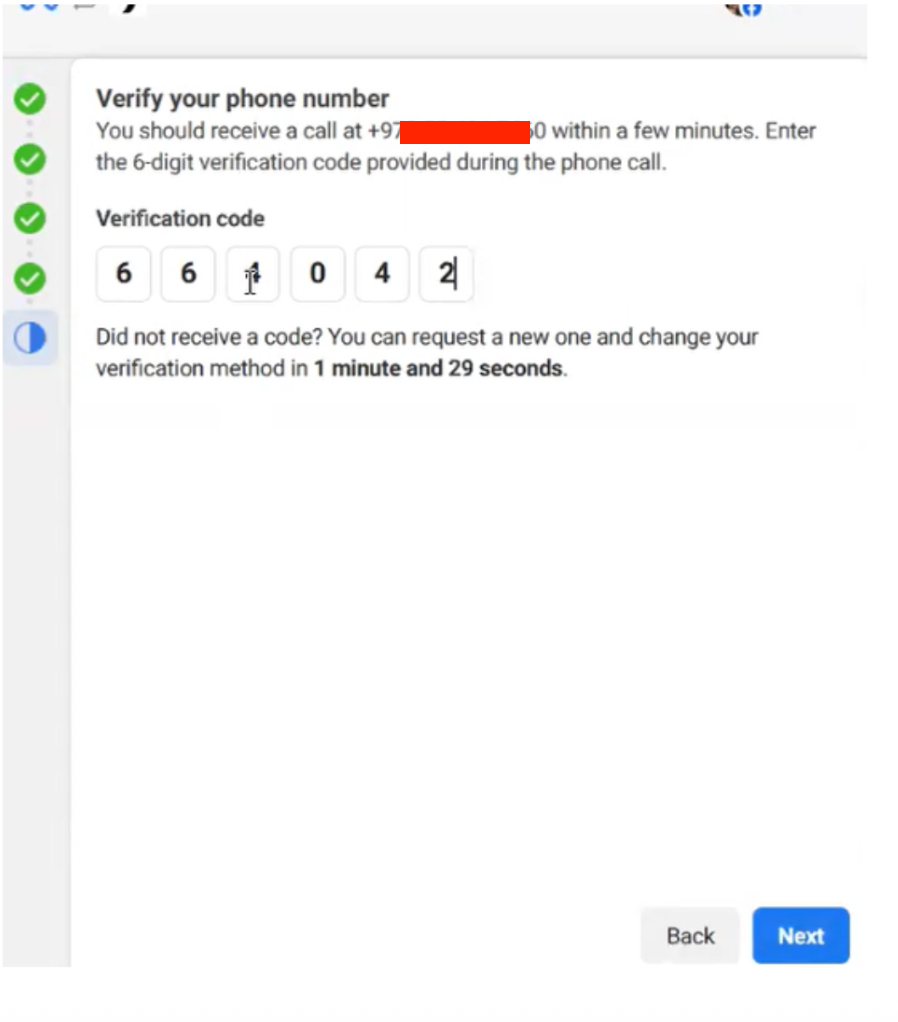
Step 7: Verify Your Phone Number
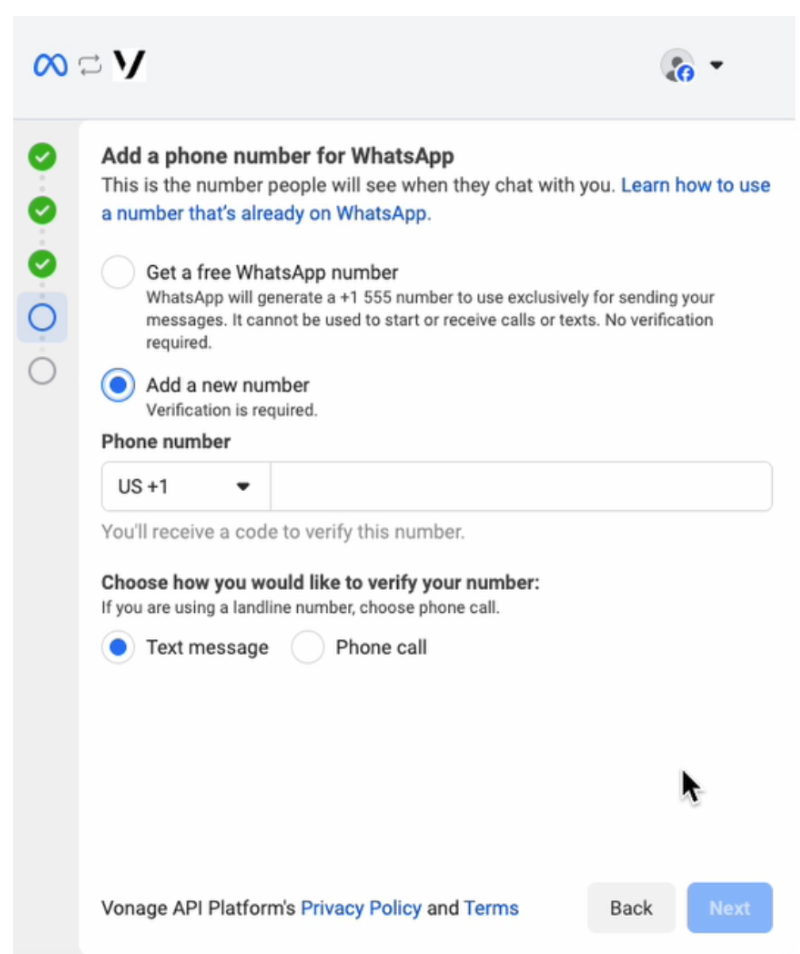
Meta will send a six-digit one-time passcode (OTP) to your number. Choose your preferred verification method:
Via SMS:
The OTP will be sent as a text message to the number you entered. Enter the six-digit code and click Next.
Via Voice Call:
This option is only available if the number you're connecting supports voice calls. You will receive an automated phone call that reads the six-digit code aloud. Enter the code and click Next.
Step 8: Finish Setup
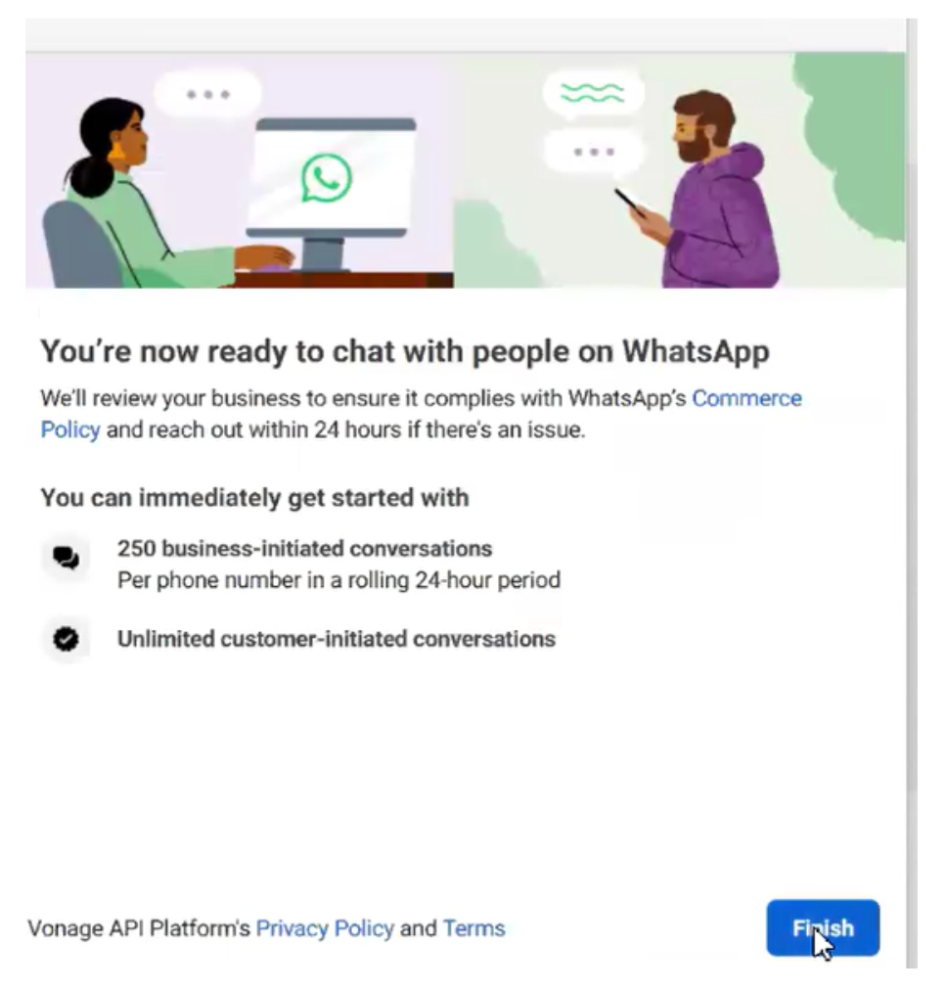
After entering the OTP, you will see a summary screen showing the parameters your new WhatsApp Business Account will start with. Click Finish to complete the process.
Step 9: Confirmation
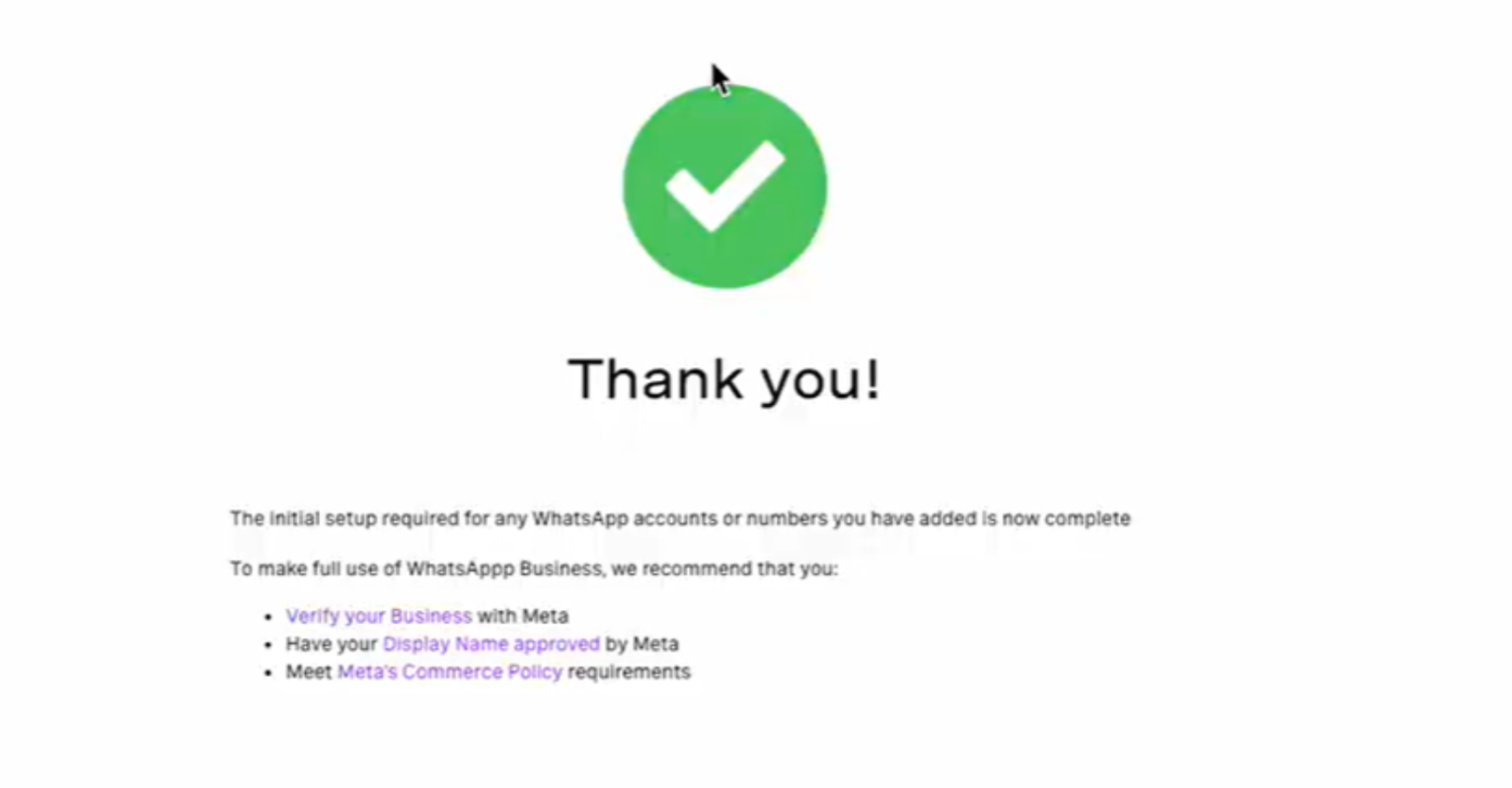
Once you click Finish, you will receive a confirmation screen. The window will close and return you to the Glassix platform.
Checking Your Status After Setup
After the Meta flow completes, Glassix runs several additional background processes (such as billing setup, reporting configuration, etc.). You will land on a status page. Here's what to do:
- If your number appears and is connected: You're all set. No action needed.
- An error appears. If you refresh the page, and the number shows up: You're all set. The error was from a background process on our side, not a connection failure.
- An error appears. If you refresh the page, and the number does not show up: Contact your Glassix contact or implementation partner. Do not attempt to reconnect the number yourself; we will need to clear some data before you try again.
Info:Why might there be an error even when the connection succeeded?
After Meta confirms your number, Glassix kicks off a series of internal processes. Occasionally, one of those processes might run into an issue and trigger an error message.
If your number appears after refreshing the page, that means it has been connected successfully and the error didn't affect the connection.
Editing Your Profile After Setup
Once your number is connected, you can update your business profile at any time from within the Glassix platform. Click the three-dot menu next to your connected number and select Edit to update your display name, business description, and other profile details.
Frequently Asked Questions
Do I need an existing Meta or WhatsApp Business Account before starting?
No. You can create a new WhatsApp Business Account as part of this flow. All you need is a Facebook account with admin access to a Meta Business Portfolio.
How long does it take?
The sign-up process takes approximately 5 minutes once you have your link and phone number ready.
Can I use a number that's currently a personal WhatsApp number?
Yes, but connecting a number to WhatsApp Business will remove it from your personal WhatsApp account. You will no longer be able to use it for personal messaging.
What if I don't have a phone number to connect yet?
You have two options: use the free 555 display number during setup (and update it later), or reach out to your Glassix contact to have a number provisioned.
Can I bring over message templates from my previous WhatsApp account?
Not automatically. If you create a new WABA, you will need to recreate your message templates from scratch.
What if something goes wrong during the process?
Any error that appears before the final status screen is a real error. On the final status page, refresh once if your number appears, you're good. If it does not appear after refreshing, contact your Glassix contact or implementation partner before attempting to reconnect.
Additional Resources
- Meta Embedded Sign-Up Overview (Meta for Developers)
- Vonage
- For further help, contact your Glassix contact or implementation partner.
Updated 7 months ago