
Connecting Steps
How to connect steps to other components in a flow
Connecting Steps to other Components in the Flow
Most steps need to connect to the next step or receive a connection from a previous one. There are two ways to do this.
Drag and Drop
Click the blue dot on a step's card and drag the arrow to the next step.
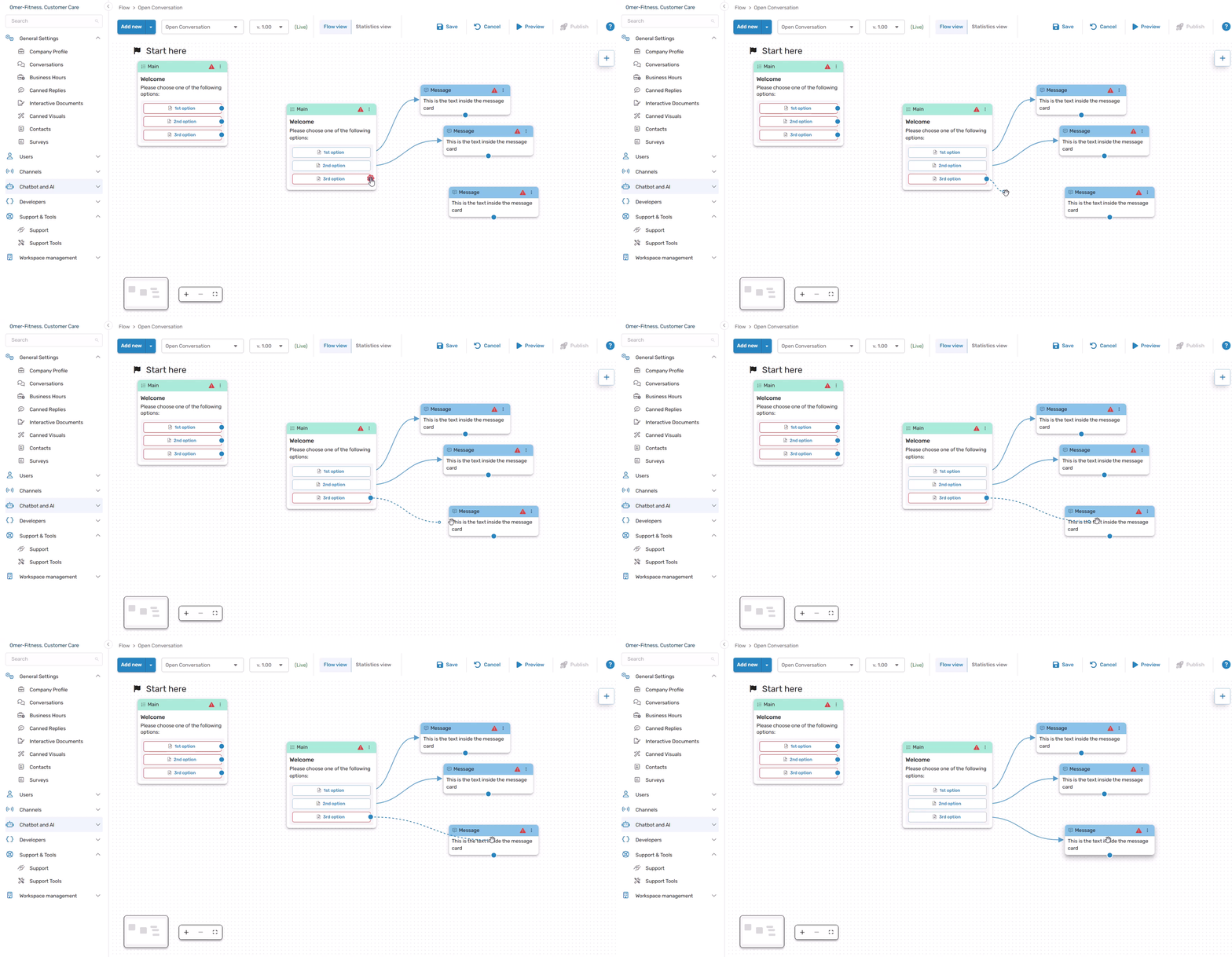
If the next step doesn't exist yet, drag the arrow to any blank area of the Flow Editor canvas. The Add Step Menu will open, where you can choose a step from the available categories.
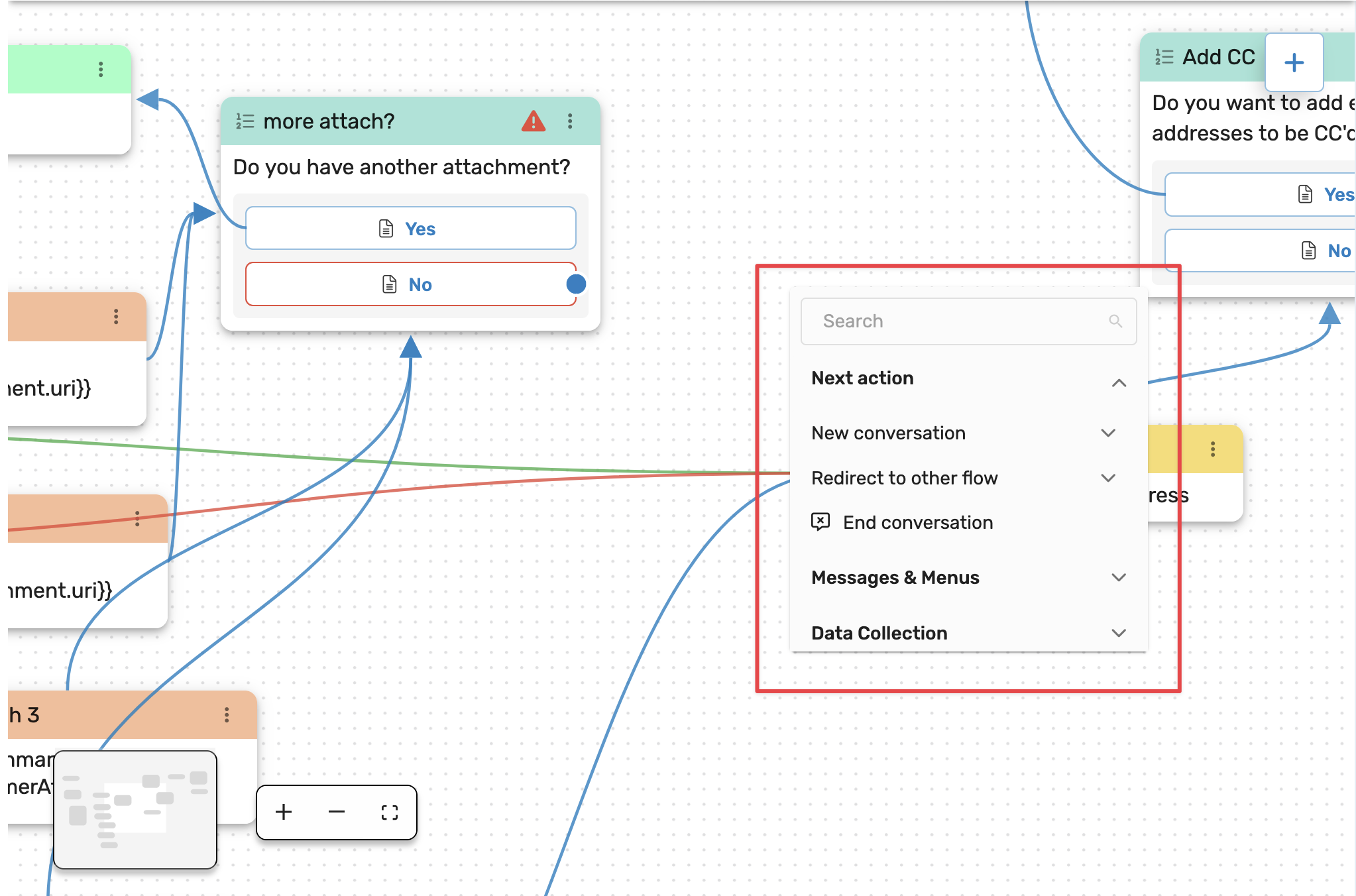
You can also connect a step from its edit panel under Next Action.
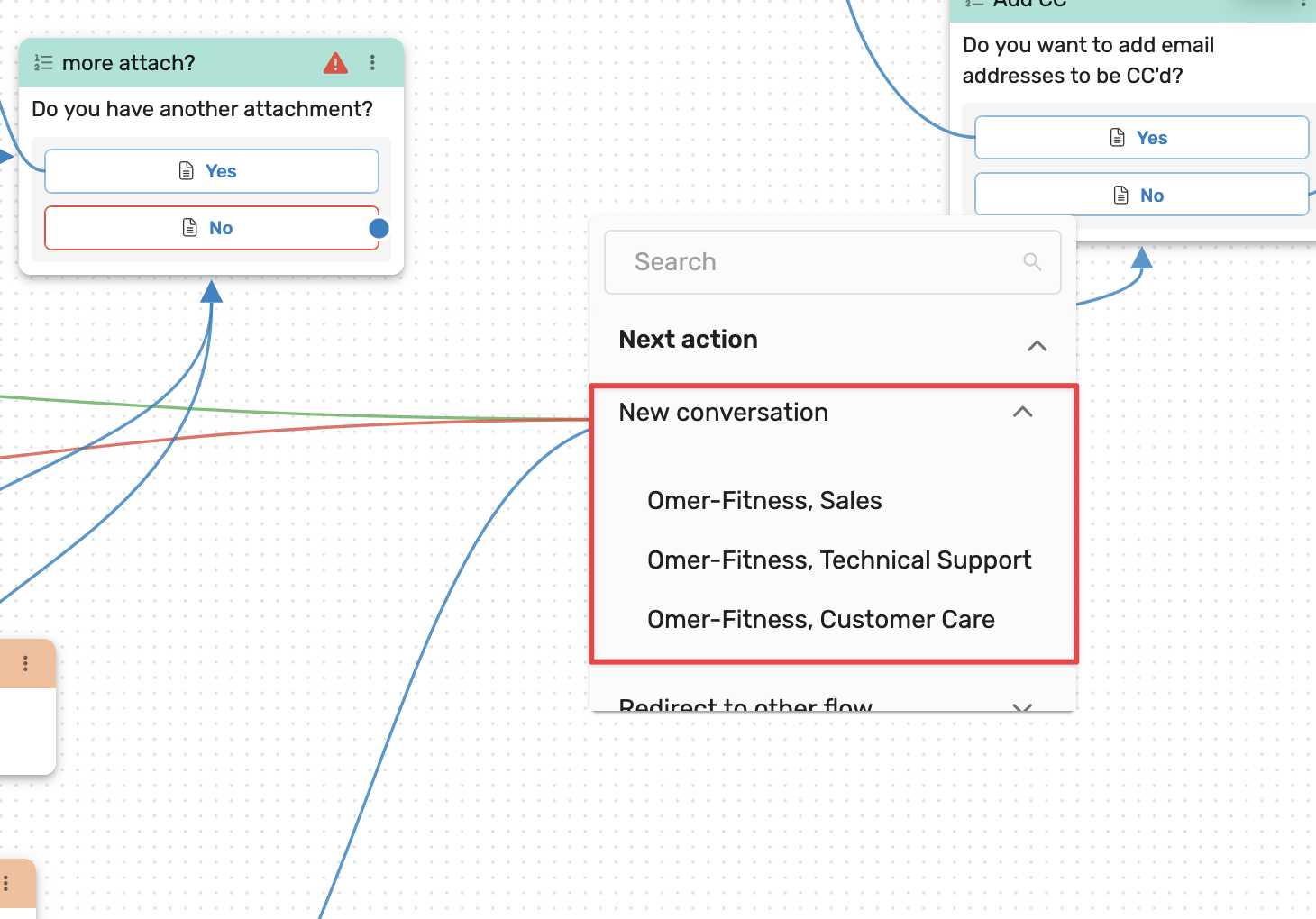
- New Conversation - Routes the flow to a ticket sent to a selected department. Only departments that have already been defined in your organization will appear in the list.
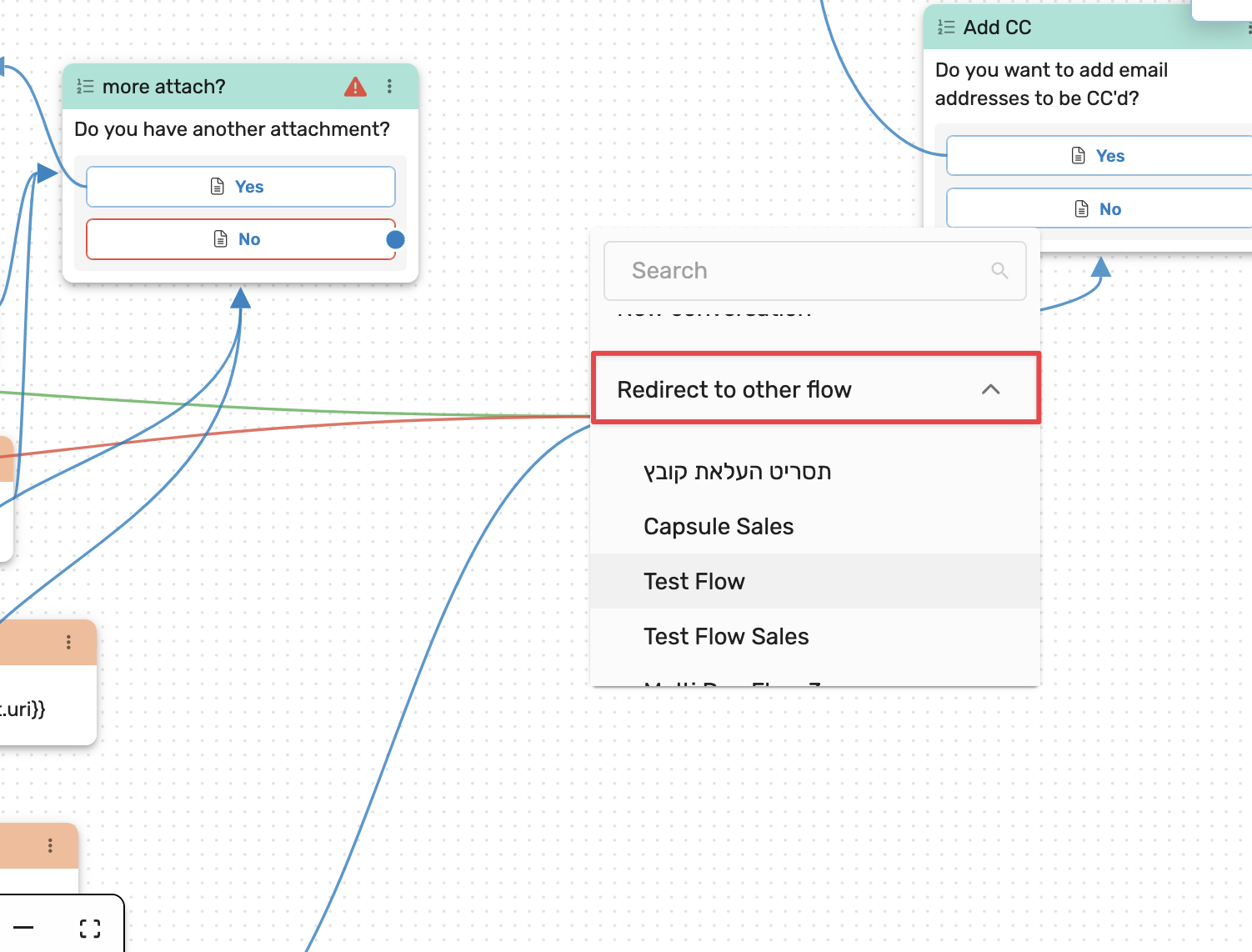
- Redirect to Other Flow - Sends the user to the start of another flow. Pick from the list of completed flows; you can type to filter the list.
- You can end the step by selecting End Conversation.
You can also drag and drop from an existing page, see how to do that here.
Updated 5 months ago
Did this page help you?