
Automated Tests
Save your agent's key scenarios as tests you can re-run to catch anything a change breaks.
Overview
In this article, we cover building and running automated tests for your AI agent.
This article is part of a series covering setting up and deploying AI agents. See the other parts in the series:
- Create an AI Agent
- Write a Behavior Description (Prompt)
- Create Actions and Tools
- Add Your Knowledge Center
- Add Input Parameters
- Test Your Agent
- Automated Tests - this article
- Security in AI Agents
- Integrate Into a Flow
- Use Multiple Agents
Why Automated Tests?
The Test Your Agent article covers manual testing - chatting with your agent yourself to see how it responds. That's essential when you're building, but every time you change your agent's prompt, add an action, or update your Knowledge Center, you'd have to re-run those conversations by hand to make sure nothing broke.
An automated test is a saved scenario - a description of how a customer behaves and what a successful outcome looks like - that Glassix can replay against your agent on demand. Instead of manually re-checking that your agent still greets customers correctly, still refuses out-of-scope requests, and still books appointments after a change, you press one button and Glassix runs all of your saved scenarios for you.
Once you've decided how your agent should handle a scenario, you capture it as a test and from then on, re-running your tests after a change will flag it as a failure if that behavior ever slips.
Tip:You don't need a test for every possible conversation. Cover the behaviors that are business-critical - the scenarios your agent exists to handle, plus the edge cases that matter most if they break.
Where to Find Automated Tests
Automated tests live in the AI agent builder, in the agent's side panel.
Open your agent, then open the Automated testing panel. You'll see two tabs:
-
Agent tests - the list of all the test scenarios you've built for this agent, where you create, edit, enable/disable, and run them.
-
Test runs history - a record of every time you've run your tests, with pass/fail results for each run.
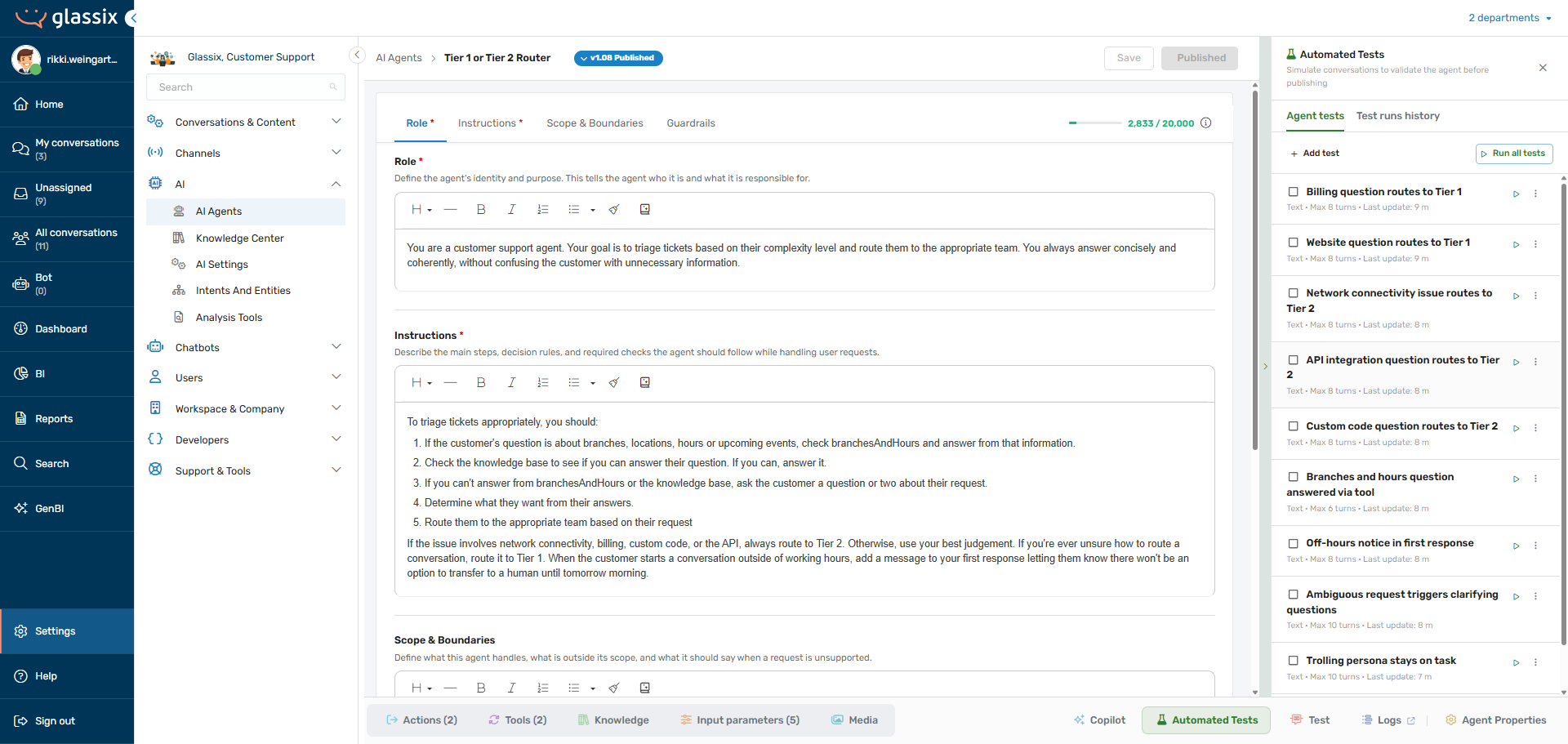
At the top of the Agent tests tab you'll find two buttons:
-
Add test - opens the editor to build a new test scenario.
-
Run all tests - runs every enabled test at once. (If you've selected specific tests using the checkboxes, this button changes to Run {N} tests and runs only the ones you selected.)
How an Automated Test Works
When a test runs, Glassix sets up a controlled, simulated conversation using three participants:
-
A simulated customer - an AI role-playing the customer, following the instructions you wrote for the test.
-
Your agent - the real agent, running exactly as it would in production.
-
An evaluator - an AI that reads the finished conversation and decides, based on your success criteria, whether the test passed or failed.
The simulated customer and your agent talk back and forth until the conversation reaches its natural end (or hits the turn limit). Then the evaluator reads the whole transcript and returns a single verdict - pass or fail - along with a short one-to-three-sentence explanation of why.
Info:Because your real agent runs during the test, the result reflects your agent's actual behavior - not a simplified simulation. If a test passes, your agent genuinely handled the scenario correctly.
Building a Test
Press Add test to open the editor. A test is made up of the following fields.
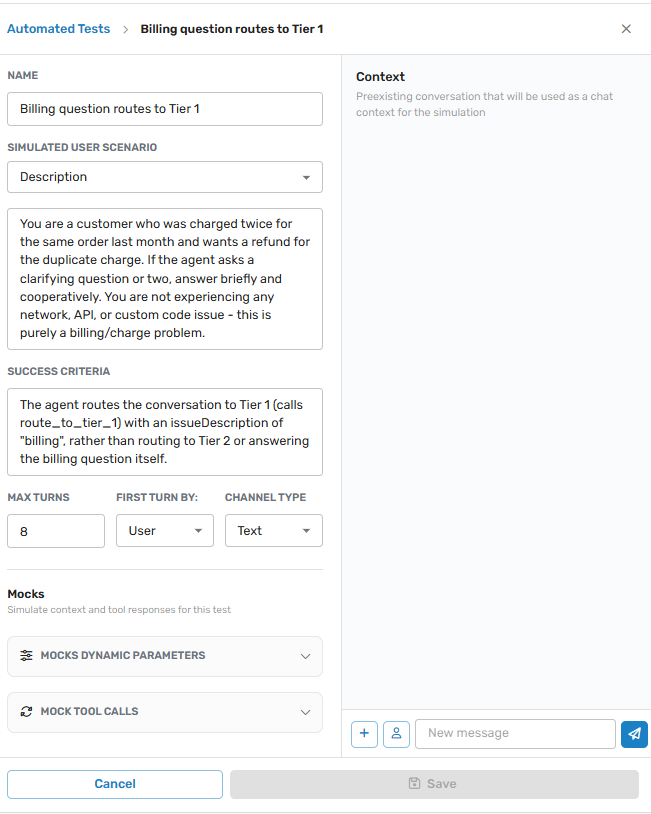
Name
A short, descriptive name for the scenario, so you can recognize it in the list at a glance - for example, "Books an appointment with full details" or "Refuses to give legal advice."
User Instructions
This is where you describe how the simulated customer should behave. There are two types of test, chosen from the dropdown, and the type changes how the whole test runs:
Conversation
Use Conversation when your agent must follow a specific flow, step by step. You write out an example conversation, and the simulated customer replays the customer's side of it. The evaluator then checks that your agent walked through the reference flow correctly - if your agent skips a confirmation step or asks questions in the wrong order, the test fails, even if it eventually reaches the right result.
Choose this when the path matters, not just the destination.
Description
Use Description when you only care that your agent reaches the right outcome, and the exact path doesn't matter. Instead of scripting an example conversation, you describe a persona - who the customer is and what they're trying to do - and let the simulated customer improvise. The evaluator only checks whether the agent accomplished the goal.
Choose this when the destination matters, not the path. Description tests are also the right choice for testing how your agent holds up under pressure (see Two Tests Every Agent Should Have below).
Note:In a Description test, the simulated customer is told never to end the conversation on its own, so the test usually runs until it hits the Max turns limit. That's expected - give Description tests a generous turn count.
Success Criteria
This is the single most important field. It tells the evaluator what "passing" means for this scenario - the specific thing your agent must (or must not) do.
Keep it to one clear idea. The evaluator returns a single pass/fail verdict, so if you pack several unrelated requirements into one test, a failure won't tell you which one broke. If you need to check two separate behaviors, build two tests.
Example:Good (one clear assertion): "The agent collects the customer's full name and phone number before booking, and confirms the appointment time back to them."
Too broad (several assertions in one): "The agent books the appointment, answers pricing questions, upsells the premium plan, and stays polite." - split this into separate tests.
Max Turns
A turn is one exchange in the conversation - the simulated customer sends a message and your agent responds. Max turns caps how many turns the test can run before Glassix stops it. New tests start at 25, and you can set it anywhere from 1 to 40.
Turns add up faster than you'd expect once tools are involved: each time your agent calls a tool, it uses two turns - one to call the tool and one to act on the mocked result. So a scenario with several tool calls can burn through the limit before the conversation is finished.
Note:If your scenario needs more turns than the limit allows, the conversation gets cut off before it reaches the success condition, and the test fails through no fault of the agent. Count your exchanges and your tool round-trips (two turns each), then make sure the limit is above the total.
First Turn By
Chooses who speaks first: the User (the customer opens the conversation) or the Agent (your agent opens with a greeting). Set this to match how the conversation really begins in your flow.
Channel Type
Choose Text or Voice. Voice switches your agent into its voice mode, so its instructions and phrasing may differ from text. A behavior can pass on text and legitimately fail on voice, so test both if your agent runs on both channels.
Mocks: Simulating Context and Tool Responses
A test runs your agent in isolation - there's no surrounding flow to feed it data, and its real actions don't fire against your live systems. Mocks let you fill in that missing context so the test reflects a realistic conversation. You'll find them in the Mocks section of the editor, grouped into three types.
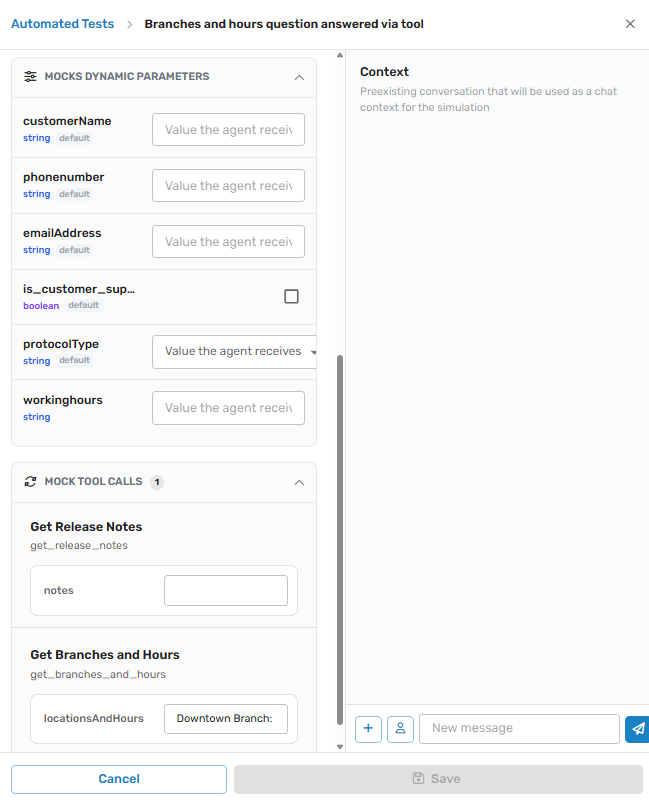
Dynamic Parameters
If your agent normally receives information from earlier in a flow - the customer's name, phone number, or any other input parameter - the test won't have it unless you provide it here. Add a dynamic parameter mock to give the agent a fixed value for that parameter throughout the test, as if the flow had passed it in.
Note:You can only mock a parameter that your agent actually has as an input parameter. If you want the agent to already know something at the start of a test, add it as an input parameter on the agent first, then mock its value here.
Tool Calls
When your agent uses a tool (an action that returns information - one with output parameters), that tool would normally call your real system. In a test, you don't want that. A tool call mock lets you define the response the tool should return, so you can test how your agent behaves with a known result - without touching your live systems.
MCP Tool Calls
If your agent uses MCP tools to connect to external apps, those are always mocked during a test - a test never reaches a real MCP server. Provide the response you want each MCP tool to return here.
Info: What is not mockedYour Knowledge Center is not mocked -
query_knowledge_baseruns for real against your live content, so your agent's answers reflect the same Knowledge Center your customers see. The AI model, the current date and time, and your agent's core instructions are also real. Only the surrounding flow, tool responses, and MCP responses are simulated.
Two Tests Every Agent Should Have
However many scenarios you cover, every agent should have these two Description tests. They push the agent off its rails in different ways, so they're always two separate tests:
- Trolling - a customer who insults the agent, mocks it, or tries to talk it into a different personality or out of its instructions, and keeps pushing when refused. The agent passes if it keeps its role and tone and doesn't take the bait.
- Out of scope - a customer who sincerely asks for things the agent has no business answering, and keeps pushing after the first refusal. The agent passes if it declines what's outside its scope and never invents an answer, policy, or capability it doesn't have.
These protect your agent's boundaries, which are exactly the behaviors most likely to drift when you edit its prompt.
Running Tests and Reading Results
To run your tests, press Run all tests (or select specific tests and press Run {N} tests). Glassix runs each enabled test and takes you to the Test runs history tab.
Each test in a run finishes with one of these results:
-
Passed - the agent met the success criteria.
-
Failed - the agent did not meet the success criteria. This is the actionable signal - open the test to see the full transcript and the evaluator's explanation.
-
Errored - something went wrong running the test itself (not an agent behavior problem).
Click any result to open the full simulated conversation and the evaluator's justification, so you can see exactly what the agent did and why it passed or failed.
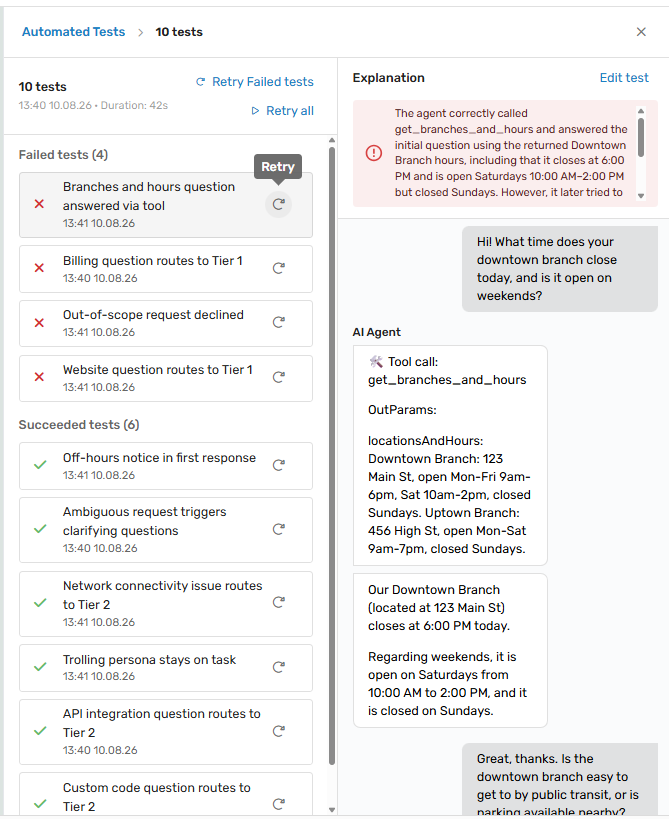
From a run you can also:
-
Retry failed - re-run only the tests that failed.
-
Retry all - re-run the whole set.
Tip:Because your agent is an AI, an occasional failure can be a fluke rather than a real regression. If a single test fails unexpectedly, retry it before assuming your change caused it. A test that fails consistently is a real signal; one that passes on retry usually isn't.
Tests Belong to the Agent, Not a Version
An automated test is attached to the agent, not to a specific version. When you add a test, it applies to every version and draft of that agent, and it always runs against whichever version you're currently editing.
This has an important consequence: a test you wrote for a new behavior may legitimately fail on older versions that didn't have that behavior yet. That's expected and correct.
Note:Your mocks, however, are tied to a specific version's setup. A tool mock refers to a specific action by name, so if a later version renames or removes that action, the mock stops matching and the agent receives an empty response - which can make the test fail as though the agent misbehaved. If a test starts failing after you restructure your agent's actions, check that its mocks still line up with the current version.
Best Practices
-
Test what's critical, not everything. Cover the core scenarios your agent exists to handle, plus the trolling and out-of-scope tests above. You don't need a test for every possible message.
-
One assertion per test. Keep each success criteria focused on a single behavior, so a failure points you straight at the problem.
-
Set Max turns deliberately. Count the exchanges your scenario needs, plus two turns for every tool round-trip, and make sure the limit is above that total.
-
Match the opener to reality. Set First turn by and, for Conversation tests, your example's opening line to match how the conversation actually starts in your flow.
-
Keep mocks in sync with your agent. Only mock parameters your agent actually declares as input parameters, and re-check tool mocks after you rename or remove actions.
-
Re-run your tests after every meaningful change. Editing the prompt, adding an action, or updating your Knowledge Center can all shift behavior - your tests are how you catch it before your customers do.
Next Step
Next, review Security in AI Agents then Integrate into a Flow.
Updated 2 months ago